
If you’ve ever plugged your URL into Google PageSpeed Insights and watched your score come back lower than you expected, you’re definitely not alone. Honestly, it can be pretty frustrating. Slow-loading pages can annoy visitors, hurt conversions, and cause mobile users to leave before they even get a chance to see what your website has to offer. That’s why so many website owners start searching for how to improve page speed score-usually right after getting a disappointing test result or noticing a drop in traffic.
But here’s the thing: a low PageSpeed score usually isn’t the actual problem. It’s more like a warning sign that something behind the scenes needs attention. Things like oversized images, unnecessary or poorly optimized plugins, too much code, and slow hosting can all make your website load slower than it should. Basically, the score is just Google’s way of showing you that there may be a few performance issues worth fixing.
And let’s be real-you don’t need to make things overly complicated or start changing random settings and risk breaking your site. In this guide, we’ll break down what’s most likely slowing your website down and show you how to fix it step by step, in a simple and practical way.
How to Improve Page Speed Score Quickly
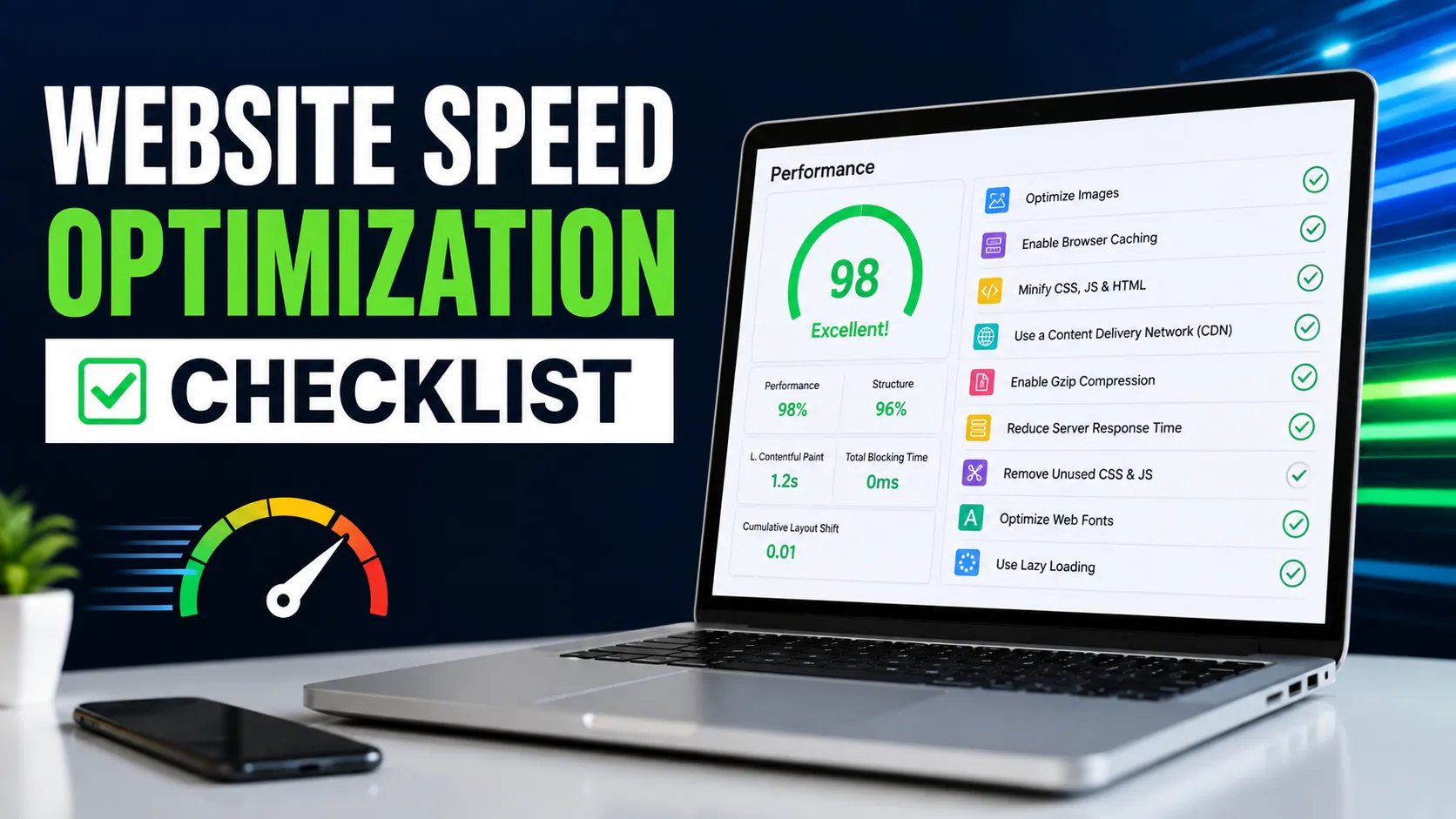
To improve your page speed score, start by compressing and properly resizing your images. You’ll also want to enable caching, minify your CSS and JavaScript files, remove any plugins you’re not really using, and consider using a CDN.
Also, don’t forget to focus on Core Web Vitals-LCP, INP, and CLS-because these can make a real difference in both your website’s user experience and overall performance score. And honestly, one of the best things you can do is test your changes one at a time using PageSpeed Insights. That way, you can actually see what’s helping and avoid making changes that don’t improve your site’s performance.
What Is a Good Page Speed Score?
A good page speed score usually falls somewhere between 90 and 100 on Google PageSpeed Insights, although honestly, anything above 70 is generally considered pretty good for most business websites. Google measures your scores separately for mobile and desktop, and, more often than not, the mobile score is lower.
That’s mainly because mobile devices typically process code more slowly and often rely on weaker or less stable internet connections compared to desktop computers. And since, you know, most people browse the web on their phones these days, Google puts a lot of emphasis on mobile performance.
That said, it’s important not to get too caught up in chasing a perfect score. A 90+ score is definitely a great target, but it’s not the only thing that matters. For example, if your website scores 85 but still loads quickly, feels smooth and responsive, and helps turn visitors into customers, then honestly, it’s doing what it’s supposed to do.
At the end of the day, you don’t always need a perfect 100. Trying too hard to squeeze out those last few points can sometimes hurt your website’s design, features, or overall user experience. So, in most cases, it’s better to focus on creating a fast, smooth website that actually works well for your visitors rather than chasing a number just for the sake of it.
Why Is Your PageSpeed Score Low?
Before you start making changes, it helps to understand what’s actually dragging your score down. In our experience working on WordPress sites, these are the most common causes, roughly in order of how often they show up:
- Unoptimized images – large file sizes that haven’t been compressed or resized
- Too many plugins – each one adds extra code that has to load
- Heavy themes – page builders and multipurpose themes often load unnecessary features
- Render-blocking CSS and JavaScript – code that stops the browser from displaying content until it finishes loading
- Poor hosting – shared hosting plans that can’t handle traffic spikes or heavy sites
- No caching – every visitor triggers a full page rebuild instead of loading a saved version
- Third-party scripts – chat widgets, ad trackers, and social embeds that load from outside servers
- Large DOM size – too many elements on a single page, which slows down rendering
- Slow server response time – the delay between a browser’s request and the server’s first response
Most sites don’t have just one of these issues – they have three or four stacked on top of each other. That’s part of why fixing speed feels overwhelming at first.
How to Improve Page Speed Score to 90+ Step by Step
Once you know what’s likely causing the slowdown, the actual fixes are pretty straightforward. Here’s the order we’d recommend tackling them in.
1. Start With Google PageSpeed Insights
Before changing anything, run your site through PageSpeed Insights and read the diagnostics section carefully. It will flag specific issues – like “eliminate render-blocking resources” or “properly size images” – along with an estimate of how much time each fix could save.
This step matters because it stops you from guessing. Instead of installing five plugins hoping one of them helps, you’ll know exactly where your time is best spent.
2. Optimize and Compress Images
Images are usually the single biggest contributor to page weight. A few practical steps:
- Compress images before uploading (tools like TinyPNG or ShortPixel work well)
- Use modern formats like WebP or AVIF, which are smaller than JPEG or PNG at similar quality
- Resize images to the actual dimensions they’ll display at – don’t upload a 4000px photo for a 600px thumbnail
- Add width and height attributes so browsers can reserve space before the image loads, which also helps prevent layout shift
3. Enable Browser and Server Caching
Caching stores a version of your page so it doesn’t have to be rebuilt from scratch for every visitor. Browser caching tells a visitor’s browser to save certain files (like your logo or stylesheet) locally, so repeat visits load faster. Server-side caching (often called page caching) saves a fully rendered version of your page on the server itself.
For WordPress sites, plugins like WP Rocket, W3 Total Cache, or LiteSpeed Cache handle most of this automatically. The performance difference caching makes on repeat visits is often the single most noticeable improvement you’ll see.
4. Remove Unused Plugins and Heavy Themes
Every plugin adds CSS, JavaScript, or database queries – even ones you rarely use. Go through your plugin list and ask honestly whether each one earns its place. Deactivating and deleting unused plugins is one of the fastest wins available, and it costs nothing.
Heavy themes, especially ones built around page builders, often load extra CSS and JS libraries site-wide, even on pages that don’t use those features. If your theme feels bloated, a lighter, purpose-built theme can make a real difference.
5. Minify and Optimize CSS and JavaScript
Minifying code removes unnecessary spaces, comments, and line breaks, which shrinks file size without changing how the code works. Beyond minification, look for:
- Unused CSS – style rules loaded on every page but only used on a few
- Render-blocking JavaScript – scripts that stop the page from rendering until they finish loading, which can often be deferred or loaded asynchronously instead
Most caching plugins include minification tools, but combining or deferring scripts sometimes requires a bit more care to avoid breaking site functionality.
6. Improve Core Web Vitals
Core Web Vitals are three specific metrics Google uses to measure real-world user experience:
- LCP (Largest Contentful Paint) – how long it takes for the largest visible element (usually a hero image or heading) to load. Aim for under 2.5 seconds.
- INP (Interaction to Next Paint) – how quickly your page responds when someone clicks, taps, or types. Aim for under 200 milliseconds.
- CLS (Cumulative Layout Shift) – how much your page’s content jumps around while loading. Aim for a score under 0.1.
These matter because they measure actual experience, not just theoretical load time. A page can technically “finish loading” quickly but still feel janky if buttons shift around or clicks don’t register right away.
7. Use Lazy Loading Where Appropriate
Lazy loading delays offscreen images and videos from loading until a visitor scrolls near them. This reduces the amount of data loaded upfront, which speeds up initial page load. Just don’t lazy-load your hero image or anything visible above the fold – that can actually hurt your LCP score by delaying the most important visual element.
8. Improve Server Response Time
No amount of frontend optimization will fully compensate for slow hosting. Server response time – how quickly your server sends back the first byte of data – depends on:
- Hosting quality (shared hosting is often the bottleneck for growing sites)
- Database performance (bloated databases with excessive revisions or spam comments slow things down)
- Server-level caching and configuration
If you’ve optimized everything else and your site is still slow, hosting is worth a hard look.
9. Use a CDN
A CDN (Content Delivery Network) stores copies of your site’s files on servers around the world, so visitors load content from a server physically closer to them. This is especially useful if you have visitors spread across different countries or regions, since it cuts down the distance data has to travel. For a purely local business with a purely local audience, a CDN still helps, but the gains are usually smaller.
10. Reduce Third-Party Scripts
Chat widgets, social media embeds, ad trackers, and analytics tools all load code from external servers you don’t control. Each one adds a little delay, and they add up fast. Audit what’s actually on your site and remove anything that isn’t earning its keep. For scripts you do need, consider loading them after the main content instead of blocking initial render.
11. Optimize Your Website for Mobile
Mobile page speed deserves its own focus because mobile devices have less processing power and often slower connections than desktops. Beyond the fixes above, make sure your mobile menu, forms, and buttons are lightweight and don’t rely on heavy JavaScript to function. Test your mobile experience specifically – don’t assume that because desktop looks fast, mobile will follow.
Common Mistakes That Can Keep Your Page Speed Score Below 90
Even well-intentioned site owners run into these traps:
- Installing too many optimization plugins at once. Multiple caching or minification plugins can conflict with each other and sometimes make things worse.
- Optimizing without testing. Making five changes at once makes it impossible to know what actually helped – or what broke something.
- Focusing only on desktop. Mobile scores need separate attention since they’re measured under different conditions.
- Chasing a perfect 100 score. Diminishing returns set in fast, and time spent shaving off the last few points is often better spent elsewhere.
- Removing scripts without understanding their purpose. Deleting a script that turns out to power your checkout page creates a bigger problem than a slow score.
- Ignoring real user experience. A high score with a site that still feels sluggish to actual visitors means something’s being missed.
How to Increase Page Speed Score Without Breaking Your Website
The safest way to increase page speed score is to make one change at a time and retest after each one. This sounds slow, but it protects you from the classic scenario where a “speed fix” quietly breaks a form, a slider, or checkout functionality.
A few habits worth adopting:
- Always back up your site before major changes
- Test on a staging site when possible, especially for theme or plugin changes
- Check your site visually after each change, not just the PageSpeed score
- Keep a simple log of what you changed and when, so you can trace back if something breaks
Google PageSpeed optimization is rarely a one-and-done task. Plugins update, content gets added, and new third-party scripts creep in over time – periodic check-ins keep your score from quietly sliding backward.
When Should You Get Professional Help With Website Speed?
Some website speed issues are pretty simple and can be fixed in an afternoon. But honestly, some problems are a lot more stubborn. You might be dealing with plugin conflicts that only show up under certain conditions, Core Web Vitals issues that just won’t improve no matter what you try, or a slow website where nobody on your team can figure out what’s actually causing the problem.
The thing is, if you’ve already tried the basic speed tips in this guide and your PageSpeed score still isn’t moving, there’s probably something deeper going on. In many cases, it’s not just one issue. It could be a combination of hosting limitations, code-level conflicts, database bloat, or other technical problems that aren’t immediately obvious from a PageSpeed report.
That’s where a service like WP Badgers can really help. Instead of spending hours trying random fixes and hoping something works, a proper technical audit can pinpoint exactly what’s slowing your website down. Maybe it’s a specific plugin, a hosting bottleneck, unoptimized code, or a few different issues working together.
At that point, having a clear answer can save you a lot of time and frustration. If this sounds like where you’re at, Get a Free Website Audit and get a better understanding of what’s actually going on behind the scenes with your site.
Frequently Asked Questions
How can I improve my PageSpeed score to 90+?
Improve your PageSpeed score to 90+ by compressing images, enabling caching, minifying CSS and JavaScript, removing unused plugins, and improving your hosting. Focus on Core Web Vitals first, since they carry the most weight, and test each change individually to confirm it’s helping.
Is a 90 PageSpeed score good for SEO?
Yes, a 90 PageSpeed score is considered good for SEO, since page experience and Core Web Vitals are part of Google’s ranking signals. That said, speed is one of many ranking factors – strong content and relevant backlinks still matter more overall.
Why is my mobile PageSpeed score lower than desktop?
Mobile PageSpeed scores are typically lower than desktop because mobile devices have less processing power and are often tested under simulated slower network conditions. This gap is normal and expected, even for well-optimized sites.
How long does Google PageSpeed optimization take?
Google PageSpeed optimization can take anywhere from a few hours for basic fixes to several weeks for deeper technical issues involving hosting, database cleanup, or code-level conflicts. The timeline depends on how many issues are stacked on top of each other.
Can plugins slow down a WordPress website?
Yes, plugins can significantly slow down a WordPress website, especially when there are too many active at once or when they conflict with your theme or each other. Reviewing and removing unnecessary plugins is one of the most effective early steps.
Does web hosting affect page speed?
Yes, web hosting has a major effect on page speed, particularly through server response time. Shared hosting plans often struggle under traffic or heavy sites, while quality managed hosting can meaningfully improve load times.
Should I aim for a perfect 100 PageSpeed score?
Aiming for a perfect 100 PageSpeed score usually isn’t necessary and often isn’t worth the time investment. A score in the 90s with strong Core Web Vitals and a smooth user experience delivers nearly all the same benefits.
How often should I test my website speed?
You should test your website speed at least once a month, and again after any major change like a new plugin, theme update, or content overhaul. Regular testing helps catch slowdowns before they affect visitors or rankings.
Conclusion
Improving your page speed score isn’t about obsessing over one number. At the end of the day, what really matters is giving your visitors a website that loads quickly, responds smoothly, and doesn’t jump around while they’re trying to use it.
Start with the basics: optimize your images, set up proper caching, clean up unnecessary code, and make sure your hosting is reliable. Try to make one change at a time, check your Core Web Vitals, and see how your site actually performs. A perfect score looks great, sure, but real-world speed and a smooth user experience matter much more.
If your website is still slow even after trying the usual speed optimization tips, WP Badgers can help you figure out what’s actually slowing it down. Get a Free Website Audit and find out what’s affecting your website’s performance.