
Key Takeaways
- Event-Based Shift: GA4 uses an event-based data model rather than sessions, requiring marketers to track user actions rather than basic page views.
- Engagement Rate Value: The traditional Bounce Rate is replaced by Engagement Rate, giving a much clearer picture of search intent match.
- GSC Integration: Linking Google Search Console to GA4 unlocks query-level data directly alongside user behavior reporting.
- Custom Explorations: The Explorations tool allows SEOs to build custom landing page maps and reverse-engineer conversion pathways.
- Enhanced Measurement: Native auto-tracking monitors scroll depths, file downloads, and site searches out-of-the-box for content optimization.
- Looker Studio & BigQuery: Combining GA4 with external visualization and warehouse systems ensures secure, historical SEO data scaling.
When Google permanently retired Universal Analytics, a lot of digital marketers honestly felt like the rug had been pulled out from under them. And if you’ve ever opened Google Analytics 4 and found yourself staring at missing reports, unfamiliar metrics, or dashboards that just don’t seem to make sense, you’re definitely not alone. Honestly, GA4 feels less like a simple update and more like an entirely new platform that you have to learn from scratch.
The thing is, Google Analytics 4 wasn’t really built with SEO as its main focus. Most of its reports are centered around user journeys, events, and app tracking. So, you know, the organic search data you actually need can sometimes feel buried under multiple menus and reports. That makes it harder than it should be to answer simple questions like, “Which pages are bringing in the most organic traffic?” or “Why did my rankings suddenly drop this week?”
If you’re running a WordPress website, this is where WordPress SEO Services can make a real difference. They don’t just focus on helping your website rank higher on Google. They also make sure your site is properly optimized from the ground up. That can include keyword research, on-page SEO, technical optimization, content improvements, faster page speeds, and quality link building.
And let’s be real-if your tracking isn’t set up correctly, you’re basically making important SEO decisions based on guesswork. You may not know which landing pages are actually converting your organic visitors, where people are dropping off, or what caused that unexpected traffic decline last Tuesday.
But here’s the good news: it doesn’t have to stay that way. Once you understand how to use GA4 properly, the data starts to make a lot more sense. In this guide, I’ll walk you through Google Analytics 4 step by step, in plain English. We’ll look at how to uncover useful SEO insights, set up tracking the right way, understand what your organic visitors are actually doing, and turn all that raw data into clear, practical strategies that can help you grow your search traffic and improve your rankings.
Shifting to Google Analytics 4 for SEO: The Structural Shift
Decoding the Event-Based Architecture
Universal Analytics relied mainly on sessions and pageviews to track what users were doing on a website. GA4, on the other hand, works quite differently. It treats nearly every user interaction as an individual event. So, for example, if someone clicks on an organic search result, scrolls through a service page, or submits a contact form, GA4 records each of those actions within its event-based framework.
This shift also changes the way we look at SEO performance. Instead of simply knowing that someone landed on a particular URL, you can get a much better idea of what they actually did after arriving on your site. With event parameters adding extra context, you’re able to see user behavior in more detail-what people clicked, how far they scrolled, and whether they took meaningful actions. In short, it gives you a clearer and more complete picture of what happens after the organic click.
Moving Beyond Vanity Metrics: Pageviews vs. Engagement
Total pageviews and total sessions can sometimes look impressive, but honestly, they don’t always tell you much about real business value. A page might get thousands of organic visits, but if people land on it and leave right away without reading or interacting with anything, that’s a pretty clear sign that something may be off with your search intent alignment.
That’s where GA4 takes a different approach. Instead of focusing only on traffic numbers, it puts more emphasis on active user engagement. In other words, it helps you see what visitors are actually doing once they reach your website.
This makes it easier to understand whether your organic search traffic is genuinely engaging with your content-whether people are actually reading, scrolling, and interacting-or simply bouncing almost immediately. And, at the end of the day, that’s the kind of insight that can help you optimize your content for real results, not just impressive-looking traffic numbers.
Resolving Data Discrepancies and Tracking Mismatches
When you’re looking at your data, you may notice that your old Universal Analytics (UA) numbers don’t exactly match what you’re seeing in GA4. Honestly, that’s completely normal. The difference mainly comes down to how the two platforms calculate things.
For example, UA could start a new session if a user’s traffic source changed during their visit or if the date changed at midnight. GA4, on the other hand, is a bit more consistent and can keep that same visit within a single session despite those minor changes.
So, if the numbers don’t line up perfectly, don’t panic. It doesn’t necessarily mean something is wrong with your data. Understanding these differences can help you avoid making rushed or incorrect decisions just because your historical UA data and current GA4 statistics don’t match exactly.
| Metric Attribute | Universal Analytics (Old) | Google Analytics 4 (Current) |
| Core Data Model | Session & Pageview Based | Event & Parameter Based |
| Session Calculation | Expires at midnight or on new campaign sources | Continues uninterrupted across midnight and minor shifts |
| Bounce Definition | Single-page sessions with zero interaction | Sessions that last <10 seconds, lack conversions, or have <2 page views |
| Data Retention | Indefinite standard storage options | 2 months default; extendable up to 14 months maximum |
Crucial SEO Metrics in Google Analytics 4 to Track Daily
Unpacking Engaged Sessions and Engagement Rate
The old Bounce Rate metric is no longer the default standard for tracking user dissatisfaction. Instead, we use Engagement Rate, which is the percentage of engaged sessions on your website.
An engaged session is explicitly defined as a visit that meets at least one of the following criteria:
- Lasts longer than 10 seconds on the page.
- Triggers at least one conversion or key event.
- Results in 2 or more page/screen views.
Monitoring this rate lets you quickly see if your landing pages match search intent. If a high-volume page has an engagement rate below 40%, your content likely needs better formatting, faster loading times, or clearer answers.
Analyzing GA4 Organic Search Traffic Trends
To keep an eye on your overall visibility, you need to isolate your GA4 organic search traffic from paid, referral, and direct channels. This metric shows the sheer volume of users arriving via unpaid search engine listings.
When analyzing these trends, look at direction over daily volume. A steady, multi-week decline in organic sessions suggests a potential technical issue, a drop in keyword rankings, or a rise in competitor activity.
Tracking Conversion Events Driven by Non-Paid Search
Organic traffic is only as valuable as the business actions it produces. In GA4, goals are replaced by Key Events. You can mark any standard event—such as a file download, newsletter sign-up, or lead form submission—as a conversion.
Isolating these conversions by channel reveals exactly which search queries and landing pages drive real revenue, helping you focus your resources on high-value keywords rather than just traffic drivers.
💡 Actionable Tip: Create a custom alert in your GA4 property to notify you via email if your weekly organic engagement rate drops by more than 15%. This serves as an early warning system for algorithmic penalties or breaking site elements before they tank your conversions.
Step-by-Step Google Analytics 4 Tutorial for Connecting Google Search Console
Linking Your GSC Property to GA4
To unlock deep GA4 SEO insights, you must pull your search query data into your analytics workspace. You can achieve this by integrating Google Search Console (GSC).
- Log into your Google Analytics account and navigate to the Admin panel (the gear icon in the bottom left corner).
- Look under the Product Links column and click on Search Console Links.
- Click the blue Link button on the right-hand side.
- Choose the specific GSC property that matches your website URL, then select your web data stream.
- Review your configuration and click Submit to complete the connection.
Activating and Publishing Search Console Reports
Linking the tools is only the first step. By default, the dedicated GSC reports remain hidden within your library dashboard.
To bring them into your active left-hand menu, navigate to Reports, then click on the Library option at the very bottom of the navigation drawer. Find the pre-built collection labeled Search Console, click the three vertical dots next to it, and select Publish. The Search Console reports will now permanently appear in your main navigation menu.
Merging Queries and Landing Pages for Actionable Insights
Once published, you will see two primary reports: Google Organic Search Queries and Google Organic Search Traffic. This integration lets you view search queries alongside on-site metrics.
For example, you can identify keywords with high impressions but low click-through rates (CTR). This usually means your meta titles or descriptions are not engaging enough, giving you a clear path for quick content updates.
[Navigate to Admin] ➔ [Product Links] ➔ [Search Console Links] ➔ [Link Property]
      └── Next Step: Go to [Reports] ➔ [Library] ➔ Find Search Console Collection ➔ Click [Publish]
Mastering Organic Traffic Analysis in GA4 Reports
Navigating the Traffic Acquisition Report Deep-Dive
To start your organic traffic analysis in GA4, go to Reports, click Acquisition, and open the Traffic acquisition report. This report shows you where your visitors come from across all marketing channels.
By default, the table sorts traffic by Session primary channel group. Look for the row labeled Organic Search to evaluate your total performance.
Reports ➔ Acquisition ➔ Traffic acquisition ➔ Primary Channel Group: "Organic Search"
Filtering User Acquisition vs. Session Acquisition
It is important to understand the difference between User Acquisition and Traffic Acquisition:
- User Acquisition: Focuses on how a user first discovered your website. If their very first visit was via a Google organic search, that user will always be attributed to organic search for their lifetime lifecycle metrics.
- Traffic Acquisition: Focuses on the source of the most recent session. If a user first found you via organic search but returned later through a direct URL, the subsequent session is counted under the Direct bucket.
For day-to-day SEO performance tracking in GA4, prioritize the Traffic Acquisition report. It provides a more accurate view of ongoing campaign performance.
Evaluating Landing Page Performance for Search Audiences
Traffic rarely grows or drops evenly across your entire website. It is usually driven by a handful of core pages. To find these pages, open the Landing page report under the Engagement tab.
Add a secondary dimension for Session source/medium and use the search bar to filter for google / organic. This cleanly filters your view down to organic search arrivals, showing you exactly which landing pages are winning or losing organic traffic.
Building a Custom Google Analytics SEO Dashboard via Explorations
Designing Free-Form Tables for Deep Data Diagnostics
Standard dashboard summaries are great for high-level monitoring, but deep SEO data analysis with GA4 requires the Explore workspace. This tool lets you build custom analysis tables using precise drag-and-drop metrics.
To build an organic landing page diagnostic table, select a Blank Exploration. Import the dimension Landing page + query string into the rows column. Then, drag Sessions, Active Users, Engagement Rate, and Conversions into the values block.
Finally, create a filter where Session source/medium exactly contains organic. This creates a clean, focused Google Analytics SEO dashboard that isn’t cluttered by referral spam or social traffic.
Using Path Explorations to Map Search Journeys
Path Explorations let you trace the exact steps organic visitors take after landing on your site. Instead of guessing, you can see exactly where they go.
Start with your organic landing page as the initial node, then track subsequent interactions step-by-step. If visitors frequently navigate from an informational blog post straight to a specific product or service page, that tells you the content is successfully guiding them down the funnel. If they navigate to unrelated pages, your internal linking or calls-to-action likely need adjustment.
Developing Funnel Explorations for Organic E-commerce and Lead Gen
For websites focused on generating revenue or capturing business leads, Funnel Explorations are invaluable. You can map out explicit multi-step customer journeys, such as:
Organic Landing Page View ➔ Product Page View ➔ Add to Cart ➔ Checkout Completion
This step-by-step view highlights where users drop off, showing you where to optimize your design or copy to improve conversion rates.
[Step 1: Organic Arrival] ➔ [Step 2: Key Content View] ➔ [Step 3: Form Interaction] ➔ [Step 4: Thank You Page Success]
Advanced SEO Data Analysis with GA4, BigQuery, and Looker Studio
Constructing Client-Ready Views in Looker Studio
While GA4 handles data collection exceptionally well, its internal reporting interface can sometimes feel clunky for sharing insights with stakeholders or clients. Looker Studio addresses this by serving as a seamless visualization layer.
By connecting your GA4 property directly to Looker Studio, you can build clean, white-labeled reporting layouts that showcase high-level metrics like organic sessions, ranking trends, and conversion growth. This simplifies your Google Analytics 4 SEO reporting, transforming complex data points into intuitive charts that clearly demonstrate business value.
Leveraging Free BigQuery Exports for Enterprise-Level Scale
One of GA4’s biggest advantages over Universal Analytics is its free, native export link to BigQuery, Google’s cloud data warehouse. The free tier of GA4 deletes user data after 14 months, which severely limits long-term year-over-year comparisons.
Exporting your raw event streams directly to BigQuery bypasses these retention limits entirely. This gives your data science teams the freedom to run advanced SQL queries, blend deep search trends across multiple years, and preserve historical data without sampling limitations.
Spotting and Investigating Sudden Traffic Drops
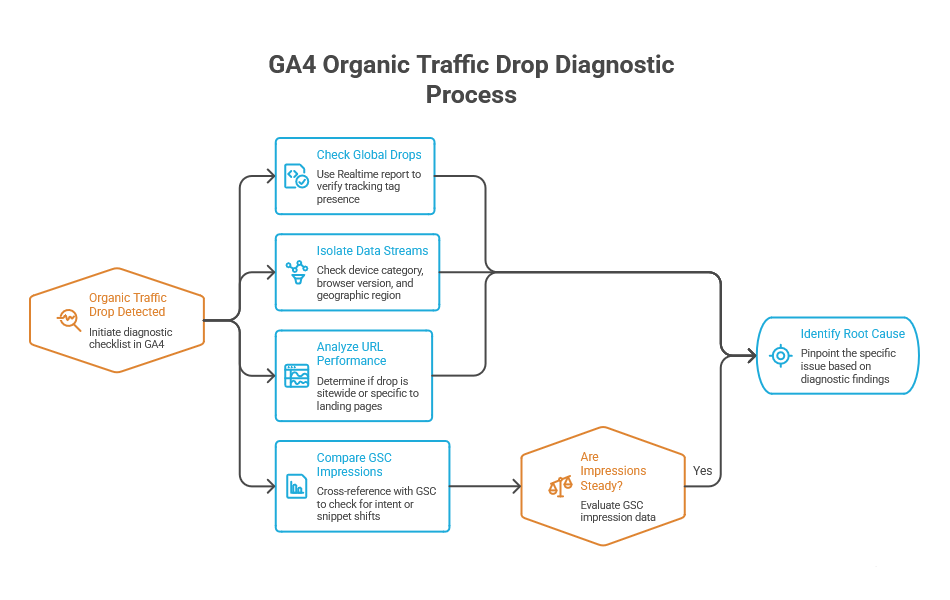
If your organic traffic suddenly drops, a systematic diagnostic checklist can help you quickly pinpoint the root cause in GA4:
- Check for Global Drops: Look at the Realtime report to confirm the tracking tag hasn’t accidentally been stripped from your site templates.
- Isolate Specific Data Streams: Check if the traffic drop is isolated to a specific device category, browser version, or geographic region.
- Analyze URL Performance: Identify whether the drop is sitewide or tied to specific high-traffic landing pages that may have lost rankings.
- Compare GSC Impressions: Cross-reference the drop with GSC impressions. If impressions remain steady but clicks decrease, search intent or snippet visibility may have shifted.
Enhancing Content Strategy with GA4 Search Engine Optimization Insights
Customizing Enhanced Measurement for Scroll Depth and Forms
GA4 includes an Enhanced Measurement feature that automatically tracks events like file downloads, outbound link clicks, and video engagement right out of the box. However, the default scroll tracking only triggers when a visitor reaches the very bottom (90% depth) of a page.
To get more practical content insights, customize these parameters to track intermediate milestones like 25%, 50%, and 75% depth. If organic visitors regularly abandon your long-form articles at the 25% mark, it’s a clear sign you need to make your intros more engaging or add visual breaks to keep their attention.
Mining On-Site Search Queries for Long-Tail Keyword Gaps
If your website features an internal search bar, GA4 can track those queries through the view_search_results event. Analyzing these internal terms gives you a direct look into your audience’s mind.
When visitors use internal search, they are telling you exactly what they couldn’t easily find via your main navigation or landing pages. If you notice recurring searches for a specific service or topic, it highlights an immediate content gap you can target to capture new search queries.
Evaluating Backlink Quality and Referral Alignment
A complete GA4 search engine optimization strategy looks beyond search engines to evaluate the referral traffic driving authority to your site. Under the acquisition dashboard, filter your traffic source by Referral to analyze external backlink value.
If links from guest posts or directory profiles drive highly engaged visitors who convert, it validates your off-page SEO efforts. If referral traffic has zero engagement or high bounce indicators, it suggests those external links aren’t reaching the right audience.
🏢 Real-World Example: An enterprise B2B software site noticed a 30% drop in organic traffic after a major site redesign. Using a GA4 Free-Form Exploration filtered by landing pages and organic search, they quickly isolated the issue to five legacy blog posts. The migration team had forgotten to implement 301 redirects for those high-performing URLs, leading to 404 errors. Adding the missing redirects restored their traffic and keyword rankings within two weeks.
Flawless Technical Implementations for Clean Data
Setting Up Data Streams and Filters Comfortably
To protect the integrity of your SEO metrics in Google Analytics 4, you must exclude internal office traffic, staging servers, and developer testing sessions. Unfiltered internal visits can artificially inflate your engagement data and skew your actual conversion insights.
Go to your Admin panel, select Data Streams, click your web stream, and open Configure tag settings. From there, choose Define internal traffic and add your company’s IP addresses. Next, go back to the Admin level, click Data Filters, and set the internal traffic filter to Active to keep your data clean moving forward.
Navigating Consent Mode v2 and Privacy Compliance
Modern privacy standards require web analytics to adapt dynamically based on user cookie preferences. Implementing Consent Mode v2 ensures your GA4 property remains compliant with global regulations while minimizing data loss.
When users decline analytical tracking cookies, GA4 uses advanced machine learning models to fill reporting gaps safely. This predictive modeling helps preserve accurate year-over-year organic traffic tracking without violating user privacy.
If configuring these complex reports or navigating strict privacy setups feels overwhelming, partnering with professional WordPress SEO services ensures your technical tracking and search configurations are flawlessly optimized from day one.
Partner with the Experts at WP Badgers
Managing a complex GA4 setup while staying on top of content, SEO, and technical audits can get overwhelming pretty quickly. That’s where WP Badgers can help. As a trusted WordPress web design and SEO agency, we’ve helped more than 80 businesses turn confusing analytics into clear, actionable insights that support real growth.
Instead of spending hours trying to figure out reports and tracking data, you can let our team take care of your GA4 setup, tracking, reporting, and ongoing optimisation. Simply put, we handle the technical side so you don’t have to worry about it. This gives you more time to focus on what really matters-running your business, serving your customers, and growing with confidence.
Get Started Today
We are always here to
help you achieve the unimaginable

Frequently Asked Questions (FAQs)
Why is my organic traffic different between Google Search Console and GA4?
Google Search Console measures raw search engine clicks and impressions independently of browser settings. GA4 tracks actual on-site sessions, which can be affected by cookie consent choices, tracking block extensions, or users leaving before your analytics tags fully load.
What replaced Bounce Rate for organic search analysis in GA4?
Engagement Rate has replaced the traditional Bounce Rate metric. Instead of tracking single-page exits, GA4 measures the percentage of sessions that last over 10 seconds, view multiple pages, or trigger a conversion event, providing a much more accurate view of user interest.
Can I see exact organic keyword terms directly inside GA4 reports?
Standard GA4 reports obscure most search keywords under privacy placeholders like (not provided). To see real keyword queries, you must link your Google Search Console property to GA4, which unlocks dedicated query dashboard cards directly within your reporting interface.
How far back does historical data go in the free version of GA4?
By default, the free tier of GA4 sets user and event data retention to just 2 months. You should manually adjust this setting to the maximum limit of 14 months within your Admin panel to ensure you can perform year-over-year organic traffic comparisons.
What is an “engaged session” when analyzing search traffic?
An engaged session is a visit that lasts longer than 10 seconds, includes two or more page views, or triggers at least one conversion event. This metric helps you verify whether your organic search traffic is finding valuable information or bouncing quickly.
How do I isolate Google organic search traffic from other channels?
Open your Traffic Acquisition report and look for the Organic Search channel group. For deeper analysis, add a secondary dimension like Session source/medium and filter for google / organic to see performance across search engines.
Do I need Google Tag Manager to set up GA4 for SEO tracking?
While you can embed the standard tracking script directly into your header templates, using Google Tag Manager is highly recommended. It provides a cleaner way to deploy, manage, and scale advanced custom event parameters like scroll tracking and form submissions.
Conclusion
Mastering Google Analytics 4 (GA4) for SEO isn’t just a nice skill to have anymore-it’s pretty much essential if you want to grow your business online. The thing is, rankings alone don’t tell you the whole story. You also need to understand what people actually do after they land on your website. Are they engaging with your content? Clicking through to other pages? Taking action or leaving right away?
That’s where GA4 really comes in. Instead of relying on outdated vanity metrics, GA4’s event-based tracking gives you a much clearer picture of how people are actually interacting with your site. When you connect Google Search Console, keep an eye on your Engagement Rate, and use custom Explorations to dig deeper into the data, you can turn all those numbers into practical SEO insights. And honestly, that’s what helps you make smarter decisions, understand what’s working and what’s not, and improve your search performance over time.
Think of WordPress SEO services as the foundation for getting your website found on Google. It’s not just about adding a few keywords and hoping for the best. A complete SEO strategy includes keyword research, on-page optimization, technical SEO, content optimization, website speed improvements, and quality link building. When all of these pieces work together, your WordPress website has a much better chance of ranking higher, attracting the right visitors, and turning that traffic into real customers.