
If you’ve ever installed an SEO plugin, added your focus keyword, and waited for the traffic to start rolling in-only to realize that nothing really changed-you’re definitely not alone.
A lot of WordPress site owners assume that seeing a green “good” score in Yoast or Rank Math means their SEO is basically taken care of. But honestly, that’s not how it works.
SEO plugins are helpful tools, but they’re not a complete SEO strategy. The real work happens behind the scenes-in your site structure, content quality, technical SEO, page speed, internal linking, and, most importantly, how well your content actually matches what people are searching for.
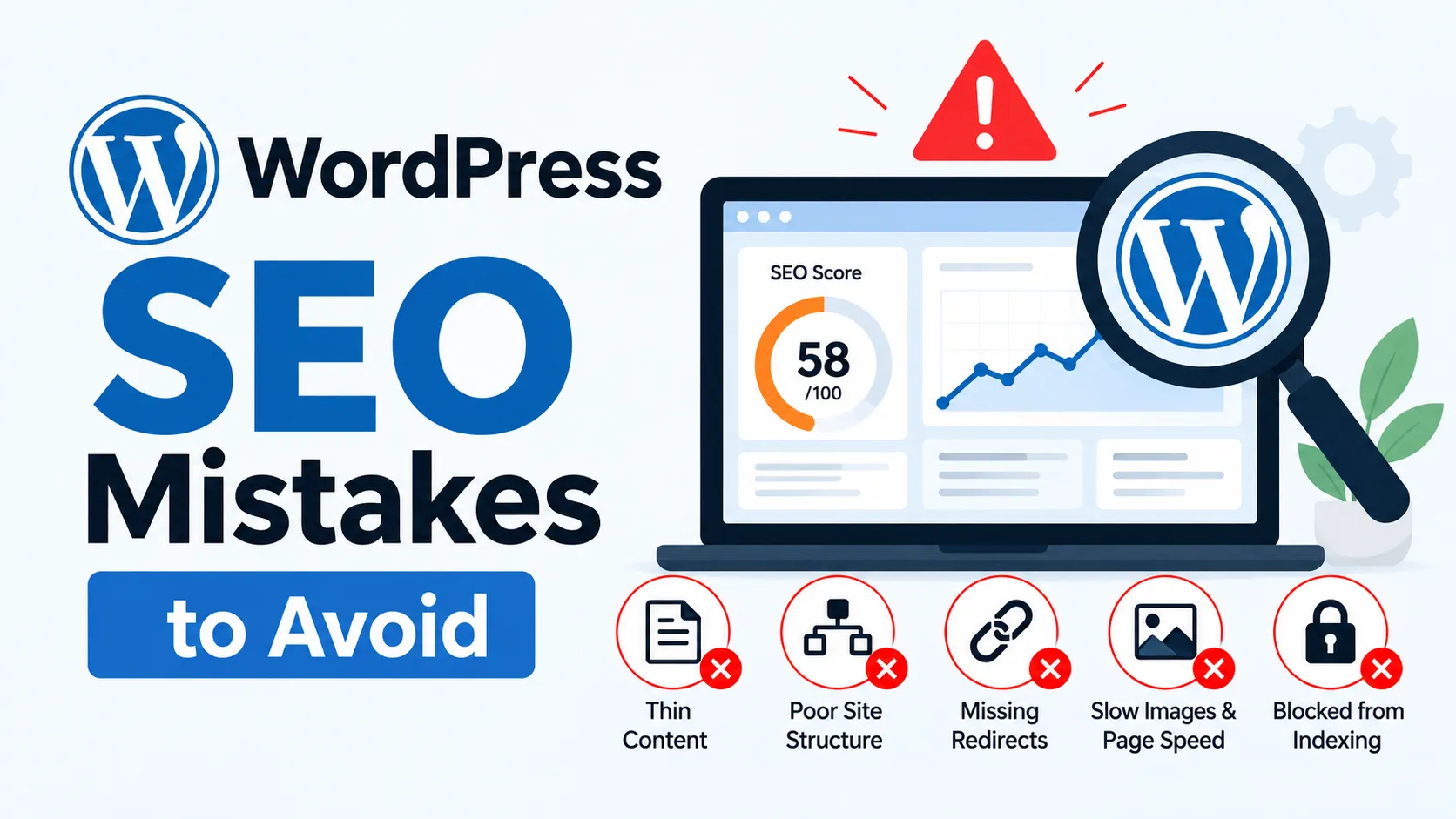
And here’s the thing: some SEO problems are really easy to overlook. Maybe you have a missing redirect, a page that Google can’t crawl, an image gallery that takes forever to load, or content that doesn’t quite match the search intent. Any one of these issues might seem small, but over time, they can seriously limit how well your website performs in search results.
That’s why it’s worth taking a step back and looking at the bigger picture.
In this guide, we’ll go through the most common WordPress SEO mistakes to avoid in 2026, explain why they matter, and-more importantly-show you what you can actually do to fix them.
Whether you’re just getting started with WordPress or you’re managing SEO for a growing website, this guide will give you a practical, easy-to-follow action plan you can start using right away.
Why WordPress SEO Mistakes Still Matter in 2026
WordPress SEO in 2026 is about a lot more than just adding keywords to your pages. Google looks at the bigger picture now-things like technical performance, user experience, mobile usability, content quality, and structured data all play a role in how, and even whether, a page ranks.
And honestly, that’s where things can get tricky. One weak area can affect the whole site. For example, you might have a fast website with really good content, but if Google can’t properly crawl or index your pages, you’re not going to get much visibility. On the other hand, you can have a perfectly structured website, but if the content is thin or doesn’t actually help visitors, it may struggle to stay in the search results.
So, at the end of the day, search intent, crawlability, technical SEO, and genuinely helpful content all need to work together.
That’s also why common WordPress SEO mistakes can be so frustrating. Usually, there isn’t one huge problem staring you in the face. Instead, you have a bunch of small issues-maybe a slow page here, poor internal linking there, indexing problems, or content that doesn’t quite match what people are searching for. Each issue might seem minor on its own, but together, they can slowly eat away at your organic visibility.
And by the time you actually notice a significant drop in traffic, there’s a good chance that several SEO problems have already piled up.
15 WordPress SEO Mistakes to Avoid in 2026
1. Choosing the Wrong SEO-Friendly Site Structure
A confusing site structure makes it harder for both users and Google to understand what your site is about and how pages relate to each other.
Your site structure – how categories, pages, and posts are organized – tells search engines what matters most on your site. A flat structure with no clear hierarchy, or one where important pages are buried five clicks deep, dilutes your topical authority.
Fix: Group related content under logical categories, keep your navigation shallow (ideally 3 clicks or fewer to any page), and make sure your most important pages are linked from your homepage or main menu.
2. Ignoring Search Intent
If your content doesn’t match what searchers actually want, it won’t rank — no matter how well-optimized it looks on paper.
Search intent generally falls into four categories: informational (learning something), commercial investigation (comparing options), transactional (ready to buy or sign up), and navigational (looking for a specific brand or page). Writing a purely informational blog post to target a transactional keyword like “buy WordPress hosting” is a mismatch Google will penalize with lower rankings.
Fix: Before writing, check what’s currently ranking for your target keyword. If the top results are product pages, write a product page. If they’re guides, write a guide.
3. Stuffing Keywords Into Content
Keyword stuffing makes content harder to read and can trigger algorithmic quality filters, actively hurting rankings instead of helping them.
Repeating “WordPress SEO mistakes to avoid” in every other sentence doesn’t fool modern search algorithms – it just makes your writing awkward. Google’s language models are built to understand context and synonyms, not just exact-match phrases.
Fix: Use your primary keyword where it fits naturally – title, intro, a subheading, and the conclusion – then rely on related terms and plain language for the rest.
4. Writing Thin or Low-Value Content
Thin content is any page that doesn’t fully answer the reader’s question, and it’s one of the fastest ways to stall your organic traffic.
A 300-word page that vaguely covers a topic without examples, detail, or a clear answer won’t outrank a competitor’s thorough 1,500-word guide.
Example: A page titled “How to Choose a WordPress Theme” that lists three generic tips isn’t useful compared to a guide that covers performance, compatibility, page builders, and licensing.
Fix: Audit older pages for depth. If a page barely covers the topic, expand it with real detail, examples, and answers to related questions – or consider merging it with a stronger page.
5. Using Poor or Duplicate Title Tags and Meta Descriptions
Duplicate or vague title tags confuse search engines about which page to rank for a given query and reduce click-through rates from search results.
Many WordPress sites default to using the same title tag format on every page, or worse, leave meta descriptions blank so Google auto-generates them (often poorly).
Fix: Write a unique, descriptive title and meta description for every important page. Keep titles under roughly 60 characters and descriptions under roughly 160 characters so they don’t get cut off in Google Search results.
6. Creating Bad URL Structures
Long, messy URLs full of dates, numbers, or unnecessary words are harder for users and search engines to understand at a glance.
Fix: Keep URLs short, readable, and keyword-relevant. Avoid changing URLs after they’ve been indexed unless you set up a proper redirect (more on that below).
7. Ignoring Internal Linking
Internal linking helps search engines discover and understand relationships between your pages, and it helps users find related content without leaving your site.
Many WordPress blogs publish post after post with no links back to related articles or service pages. This isolates content and wastes the ranking power of your stronger pages.
Fix: Whenever you publish new content, link to at least 2–3 relevant existing pages, and go back to update older posts with links to newer, related content.
8. Uploading Unoptimized Images
Large, poorly labeled images slow down your site and miss out on image search visibility.
Uploading full-resolution camera images straight into a blog post is one of the most common WordPress SEO issues, especially for photography-heavy sites like real estate or e-commerce.
Fix: Compress images before uploading, use modern formats like WebP where possible, choose descriptive filenames (blue-ceramic-mug.jpg instead of IMG_2031.jpg), and add descriptive alt text for accessibility and image optimization.
9. Ignoring Website Speed and Core Web Vitals
Slow-loading pages hurt both user experience and rankings, since Core Web Vitals are part of how Google evaluates page quality.
Heavy themes, unoptimized plugins, autoplay videos, and bloated scripts all add load time. Core Web Vitals measure things like how quickly content loads, how soon a page becomes interactive, and how much elements shift around while loading.
Fix: Use a caching plugin, a lightweight theme, and a content delivery network (CDN). Test your pages in Google’s PageSpeed Insights and address the specific issues it flags rather than guessing.
10. Installing Too Many WordPress Plugins
Excess plugins can cause conflicts, slow down your site, and create security or maintenance risks that indirectly hurt SEO.
Every plugin adds scripts, stylesheets, and database calls. Ten plugins each adding a small delay adds up to a genuinely slow site.
Fix: Regularly review your plugin list. Deactivate and delete anything you’re not actively using, and check for overlapping plugins doing the same job (like two separate SEO or caching plugins running at once).
11. Forgetting Mobile SEO
Google primarily uses the mobile version of your site for indexing and ranking, so a poor mobile experience directly affects your visibility.
A theme that looks great on desktop but has tiny text, overlapping buttons, or slow load times on mobile will hurt your rankings – even if your desktop version is excellent.
Fix: Test your key pages on an actual phone, not just a browser resize. Confirm tap targets are large enough, text is readable without zooming, and pop-ups don’t block content.
12. Having Indexing and Crawlability Problems
If Google can’t crawl or index a page, it won’t appear in search results no matter how well it’s written.
This is one of the more technical WordPress SEO mistakes, and it often happens by accident. Common culprits include an accidental “noindex” tag left on after launch, a robots.txt file blocking important sections, a missing or outdated XML sitemap, incorrect canonical URLs pointing to the wrong page, or redirects sending both users and search engines to unrelated content.
Fix: Check Google Search Console’s Coverage/Indexing report regularly. Confirm your XML sitemap is submitted and up to date, and double-check your robots.txt file after any major site change.
13. Ignoring Broken Links and Redirects
Broken links create dead ends for users and waste crawl budget, while messy redirect chains slow down both visitors and search engine bots.
Deleting a page without redirecting it leaves a 404 error in its place. If that page had backlinks or search rankings, that value is lost.
Fix: Run a broken link check periodically. When you delete or move a page, set up a single, direct 301 redirect to its new location – avoid chaining multiple redirects together.
14. Not Using Structured Data Where Appropriate
Schema markup helps search engines understand what your content is about, which can support (but doesn’t guarantee) features like rich results.
Structured data is a standardized code format that describes your content – a recipe, a review, an FAQ, a product – in terms search engines can parse directly.
Fix: Add relevant schema markup for content types like articles, FAQs, products, or local business information. Just keep in mind that adding schema markup doesn’t guarantee eligibility for rich results in Google Search.
15. Failing to Monitor SEO Performance
Without regular monitoring, small SEO problems go unnoticed until they’ve already caused a real drop in organic traffic.
Fix: Make it a habit to check Google Search Console and Google Analytics for indexing status, impressions, clicks, click-through rate (CTR), keyword rankings, and any new technical errors. Monthly reviews are a reasonable baseline for most small to mid-sized sites.
Common WordPress SEO Mistakes Beginners Make
Beginner SEO errors tend to follow a pattern. Here’s a quick checklist of the most frequent ones:
- Publishing content without any keyword research
- Changing page URLs without setting up redirects
- Forgetting to add image alt text
- Accidentally blocking important pages from indexing
- Using the same title tag on multiple pages
- Skipping internal links between related posts
- Installing unnecessary or duplicate SEO plugins
- Never logging into Google Search Console after setup
How to Fix WordPress SEO Problems Step by Step
If you’re dealing with SEO problems and don’t know where to start, work through this order:
- Audit technical SEO – check crawlability, indexing status, and site speed.
- Check indexing in Google Search Console – look for pages marked “excluded” that shouldn’t be.
- Review site structure and URLs – confirm categories and navigation make sense.
- Improve title tags and meta descriptions – make each one unique and descriptive.
- Optimize existing content – expand thin pages, update outdated information.
- Improve internal linking – connect related pages to each other.
- Optimize images and page speed – compress files, address Core Web Vitals issues.
- Fix broken links and redirects – clean up 404s and redirect chains.
- Improve mobile experience – test and adjust for smaller screens.
- Monitor results and update content – track performance and revisit pages regularly.
When Should You Hire a WordPress SEO Professional?
Not every SEO issue requires outside help, but some situations are genuinely worth bringing in a specialist. Consider professional support if:
- Organic traffic has dropped unexpectedly and you can’t pinpoint why
- Your site has hundreds or thousands of pages, making manual audits impractical
- Technical SEO issues are difficult to diagnose with basic tools
- A recent migration or redesign caused ranking or indexing problems
- Your team doesn’t have in-house SEO expertise
- Your content isn’t generating meaningful organic traffic despite consistent publishing
- You need a structured, long-term SEO strategy rather than one-off fixes
- You’d rather focus on running your business than managing SEO details
WordPress SEO Mistakes to Avoid: Quick Checklist
- Site structure is logical, with important pages easy to reach
- Content matches search intent for its target keyword
- No keyword stuffing in titles, headings, or body copy
- Pages provide real depth, not thin or generic content
- Title tags and meta descriptions are unique across the site
- URLs are short, readable, and free of unnecessary parameters
- Related pages are connected through internal links
- Images are compressed, descriptively named, and include alt text
- Site speed and Core Web Vitals have been tested and addressed
- Plugin count is kept lean and reviewed regularly
- Site performs well on mobile devices
- XML sitemap, robots.txt, and canonical tags are correctly configured
- No unnecessary “noindex” tags on important pages
- Broken links are fixed and redirects are clean (no chains)
- Structured data is added where relevant
- Google Search Console and Analytics are checked regularly
Frequently Asked Questions
What are the most common WordPress SEO mistakes?
The most common WordPress SEO mistakes include thin content, keyword stuffing, poor site structure, missing alt text, slow page speed, broken links, and accidental indexing issues like blocked pages or missing sitemaps. Most sites have a combination of several of these rather than just one.
Is WordPress automatically SEO-friendly?
No. WordPress provides a solid technical foundation – clean code and crawlable URLs – but it doesn’t automatically optimize your content, site structure, speed, or metadata. Those still require deliberate setup and ongoing maintenance.
Does installing an SEO plugin improve Google rankings?
Not by itself. An SEO plugin helps you manage titles, meta descriptions, sitemaps, and schema markup more easily, but it doesn’t create good content or fix technical issues automatically. It’s a tool, not a strategy.
How do I fix SEO problems in WordPress?
Start with a technical audit, check indexing status in Google Search Console, review your site structure, and then work through content, internal linking, speed, and mobile usability. Fixing WordPress SEO problems is usually a step-by-step process, not a single change.
Does website speed affect WordPress SEO?
Yes. Page speed and Core Web Vitals are part of how Google evaluates user experience, and slow-loading pages can hurt both rankings and conversions. Heavy themes, unoptimized images, and excessive plugins are common causes on WordPress sites.
How often should I audit my WordPress SEO?
A full audit every 3–6 months is reasonable for most sites, with lighter monthly checks of Google Search Console and Analytics in between. Sites that publish frequently or have recently migrated may benefit from more frequent reviews.
What SEO mistakes should beginners avoid?
Beginners should avoid publishing without keyword research, skipping alt text, using duplicate titles, ignoring internal links, and never checking Google Search Console. These beginner SEO errors are easy to fix once you know to look for them.
When should I hire a WordPress SEO expert?
Consider hiring a WordPress SEO expert if you’re seeing unexplained traffic drops, managing a large or complex site, recovering from a migration, or simply don’t have the time or in-house expertise to manage SEO consistently.
Conclusion
Most WordPress SEO problems don’t come from one huge mistake. More often, they build up over time because of a bunch of smaller, easy-to-miss issues-things like thin content, a confusing site structure, missing redirects, large images that slow down your pages, or even a page that’s accidentally blocked from being indexed. None of these problems are especially hard to fix on their own, but when they start piling up, they can seriously hold back your organic traffic.
And honestly, SEO isn’t something you set up once and then forget about. It’s an ongoing process. You need to keep an eye on your site, make adjustments when needed, and keep improving things as your website grows and search engines change.
So, if you’re working through the WordPress SEO mistakes to avoid in this guide, that’s a great place to start. Whether you’re handling SEO yourself or thinking about getting professional help later, this checklist can help you spot problems before they become bigger issues.
If you’ve gone through everything and you’re still dealing with SEO problems that just won’t go away, it might be worth getting a second opinion. WP Badgers works with WordPress site owners to find out what’s actually causing the problem and put together an SEO strategy based on where your website is right now.