
A slow website doesn’t just annoy visitors-it can actually cost you money. Every extra second your page takes to load means more people may leave, fewer visitors may fill out your forms, and your Google rankings can take a hit too. If you’re looking for how to fix a slow WordPress website, you’ve probably already noticed some of the usual signs: pages taking forever to load on mobile, a PageSpeed score that makes you cringe, or a big “Poor” label next to your Core Web Vitals in Google Search Console.
The good news? WordPress itself usually isn’t the problem. In most cases, a slow WordPress website comes down to a few common issues-cheap or underpowered hosting, oversized images, too many plugins, a heavy theme, missing caching, or a database that hasn’t been cleaned up in a while.
And honestly, once you figure out what’s actually slowing your site down, fixing it is usually much easier than it seems.
In this guide, we’ll walk through how to diagnose and fix a slow WordPress website step by step, so you can stop guessing and start fixing the things that are actually hurting your site’s speed.
Why Is My WordPress Website Slow?
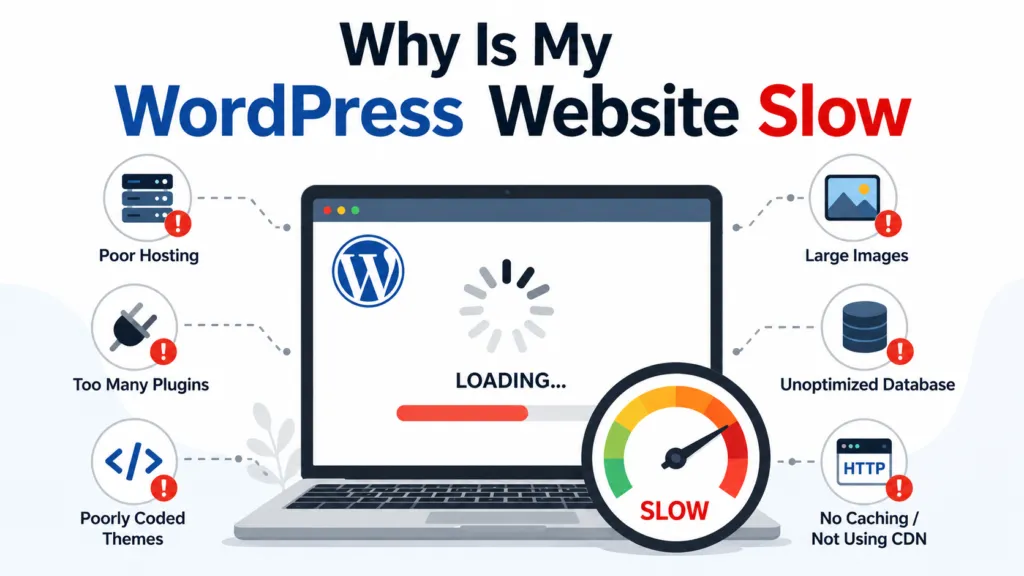
Before jumping into fixes, it helps to understand what’s actually slowing things down. A slow WordPress website is almost always caused by a combination of factors rather than a single culprit.
- Poor or cheap hosting – Shared hosting plans often pack hundreds of sites onto one server, which means your site is competing for limited CPU and memory.
- Large, unoptimized images – A single uncompressed photo can be several megabytes, which is enough to slow down an entire page.
- Too many or poorly coded plugins – Plugins add extra database queries, scripts, and stylesheets, and low-quality ones can be especially heavy.
- Bloated themes – Multipurpose themes often load features, builders, and animations you’ll never use.
- Excessive CSS and JavaScript – Unused code still has to be downloaded and parsed by the browser.
- No caching – Without caching, WordPress rebuilds each page from scratch for every visitor.
- Database bloat -Years of post revisions, spam comments, and expired transients pile up over time.
- Too many third-party scripts – Chat widgets, ad tags, and tracking pixels all add their own load time.
- Lack of a CDN – Visitors far from your server experience longer load times.
- Outdated WordPress core, plugins, themes, or PHP – Older versions miss performance improvements added in newer releases.
- Poor mobile optimization – Desktop-first design choices often perform badly on phones and slower connections.
How to Check WordPress Website Speed
You can’t fix what you haven’t measured. Before making changes, run your site through a few different tools so you’re working from real data instead of guesswork.
- Google PageSpeed Insights – Shows both lab data and real-user field data, plus a breakdown of what’s slowing the page down.
- GTmetrix – Useful for waterfall charts that show exactly which files are taking the longest to load.
- Google Search Console – The Core Web Vitals report shows how your actual visitors experience your site over time, grouped by URL.
- Chrome DevTools – The Network and Performance tabs let you inspect load order, render-blocking resources, and script execution time directly.
Rather than fixating on the overall score, pay attention to why a page scores the way it does. Two sites can both score 70, but one might be held back by a slow server and the other by unoptimized images – and those need completely different fixes.
Also keep an eye on Core Web Vitals, Google’s set of metrics for real-world user experience:
| Metric | What It Measures | Good Threshold |
| LCP (Largest Contentful Paint) | How long the main content takes to load | Under 2.5 seconds |
| INP (Interaction to Next Paint) | How quickly the page responds to clicks and taps | Under 200 milliseconds |
| CLS (Cumulative Layout Shift) | How much the layout shifts as the page loads | Under 0.1 |
How to Fix a Slow WordPress Website Step-by-Step
Once you know what’s causing the slowdown, work through these steps in order. Each one builds on the last, so start with hosting and caching before moving into smaller optimizations.
1. Improve Your WordPress Hosting
Hosting is the foundation everything else sits on. If your server takes too long to respond, no amount of plugin tweaking will fully fix it. This is measured as Time to First Byte (TTFB) – how long it takes the server to send the first piece of data back to the browser.
Cheap shared hosting plans often struggle here because resources are split across many websites on the same server. If your TTFB is consistently over 600ms, or your host has frequent downtime during traffic spikes, it’s worth moving to a host built specifically for WordPress, with proper server-level caching and adequate CPU allocation for your traffic level.
2. Enable WordPress Caching
Without caching, WordPress has to query the database and rebuild each page every time someone visits. Caching stores a ready-made version of the page so it can be served instantly instead.
There are two main types worth setting up:
- Page caching – Saves a static HTML version of a page so PHP and database queries don’t run on every visit.
- Browser caching – Tells visitors’ browsers to store certain files locally so repeat visits load faster.
One common mistake: installing two or three caching plugins at once, hoping it’ll compound the benefit. In practice, this usually creates conflicts and can slow the site down further. Pick one caching solution and configure it properly rather than stacking several.
3. Optimize WordPress Images
Images are one of the biggest and easiest wins when you’re trying to speed up WordPress. A few practical fixes:
- Compress images before uploading, or use a plugin that compresses automatically.
- Use WebP or AVIF formats, which are noticeably smaller than JPEG or PNG at similar quality.
- Upload the correct dimensions – don’t upload a 4000px-wide photo and let CSS shrink it down to 400px.
- Enable lazy loading so images below the fold don’t load until the visitor scrolls near them.
- Use responsive images (the srcset attribute) so mobile devices download smaller versions instead of the full desktop file.
For example, a hero image saved at 2MB as a PNG might drop to under 200KB as a compressed WebP file with no visible difference in quality.
4. Remove Unnecessary Plugins
Having a lot of plugins isn’t automatically bad – a well-coded plugin that’s actually being used usually isn’t the problem. The issue is plugins that are outdated, poorly built, duplicated in function, or simply no longer needed.
Go through your plugin list and ask whether each one is still doing something for your site. Deactivate and delete anything left over from a past project, an abandoned feature test, or a task now handled elsewhere.
5. Use a Lightweight WordPress Theme
Multipurpose and page-builder-heavy themes often load extra CSS, JavaScript, icon fonts, and animation libraries for features you don’t use on your particular site. Even if a section is hidden, its code may still load in the background.
A lightweight, well-coded theme gives you a cleaner starting point and fewer resources to trim later. If you’re already invested in your current theme, check whether it has unused modules or builder elements you can disable.
6. Minify CSS, JavaScript, and HTML
Minification strips out unnecessary spaces, line breaks, and comments from your code files, making them smaller to download without changing how they function.
This is usually handled by a caching or optimization plugin, but proceed carefully. Combining files or delaying script loading can sometimes break site functionality – a slider that stops working, a menu that won’t open, or a form that stops submitting. Always test each change on a staging site before applying it live, and check the front end after each setting change.
7. Reduce Unnecessary JavaScript and Third-Party Scripts
Every external script your site loads – a live chat widget, an analytics tool, an ad network tag, a social media embed, a heatmap tracker, a marketing pixel – adds its own request and execution time.
To reduce their impact:
- Audit which third-party scripts are actually providing value.
- Load non-essential scripts after the main content (deferred or async loading).
- Consider replacing heavy embeds with lighter alternatives, like a static image linking to a video instead of an auto-loading embed.
- Use a tag manager to centralize scripts instead of adding separate plugins for each tool.
8. Clean and Optimize the WordPress Database
Over time, your database accumulates clutter: old post revisions, spam comments, items sitting in trash, and expired transients that were never cleared out. This extra weight can slow down queries even on a well-hosted site.
Always create a full backup before touching your database. Once that’s done, clean out:
- Post and page revisions beyond what you actually need
- Spam and trashed comments
- Expired transient options
- Orphaned data left behind by uninstalled plugins
9. Use a CDN
A Content Delivery Network stores cached copies of your site’s files on servers around the world. Instead of every visitor pulling data from your one origin server, they get served from a location physically closer to them – which noticeably helps visitors far from where your hosting is based.
10. Optimize Fonts and External Resources
Custom fonts are a common, overlooked source of slowdown. Loading four font families in six different weights adds up fast. Stick to the font weights you’re actually using, host fonts locally where possible instead of pulling from an external server, and avoid loading icon font libraries when you only need two or three icons.
11. Fix Core Web Vitals
Once the basics are handled, focus specifically on Core Web Vitals, since these directly affect both user experience and search rankings.
| Metric | Common Causes | Practical Fixes |
| LCP | Slow server response, large hero images, render-blocking CSS/JS | Improve hosting, compress and preload the hero image, minify render-blocking files |
| INP | Heavy JavaScript execution, too many event listeners | Reduce third-party scripts, defer non-critical JS, simplify complex interactive elements |
| CLS | Images/ads without set dimensions, web fonts causing text shifts | Set width/height on images, reserve space for ads, use font-display: swap |
12. Keep WordPress Updated
Outdated WordPress core files, plugins, themes, and PHP versions miss out on performance improvements – and sometimes actively conflict with newer code. Keep everything updated regularly, and whenever you’re making a significant change, test it on a staging environment first rather than directly on the live site.
Common WordPress Speed Optimization Mistakes
Even well-intentioned optimization attempts can backfire. Watch out for:
- Installing multiple caching plugins that overlap and conflict with each other
- Adding plugins for every small task instead of consolidating functionality
- Uploading full-resolution images straight from a camera or phone
- Optimizing only for desktop and ignoring mobile performance
- Chasing a perfect PageSpeed score instead of real-world usability
- Overloading pages with animations and transition effects
- Adding third-party scripts without checking their actual value
- Making major changes directly on a live site with no backup
- Focusing only on plugins and images while ignoring hosting quality
How Much Can You Improve a Slow WordPress Website?
The amount of improvement you can realistically expect depends a lot on where your site is starting from. For example, if your site is running on cheap hosting, has oversized images, a bunch of unnecessary plugins, and no proper caching, there’s usually plenty of room to speed things up.
Things like hosting quality, image sizes, the number of plugins, theme performance, database size, traffic, and third-party scripts all play a role. And honestly, fixing one issue can sometimes uncover another bottleneck you didn’t even know was there.
So, there’s no magic number or guaranteed PageSpeed score that every website can achieve. The better approach is to test your site before making changes, optimize it step by step, and then test it again. That way, you can see what actually made a difference and keep improving from there.
When Should You Hire a WordPress Speed Optimization Expert?
Some performance issues are straightforward enough to fix yourself. Others go deeper and are worth bringing in outside help for, especially when:
- The site is still slow after working through the basic fixes above
- Core Web Vitals stay in “Poor” territory despite your efforts
- Server response time (TTFB) remains high even on decent hosting
- Plugins conflict with each other in ways that are hard to isolate
- Custom code or a custom theme is contributing to the slowdown
- The website generates revenue, so downtime or slow pages directly cost you leads or sales
- You don’t have the technical background to safely troubleshoot server or database issues
- Performance problems keep recurring after being “fixed”
This is where a team like WP Badgers typically gets involved — diagnosing what’s actually causing the slowdown (rather than guessing), then working through hosting, code, and configuration issues that go beyond what a plugin can solve on its own.
WordPress Speed Optimization Checklist
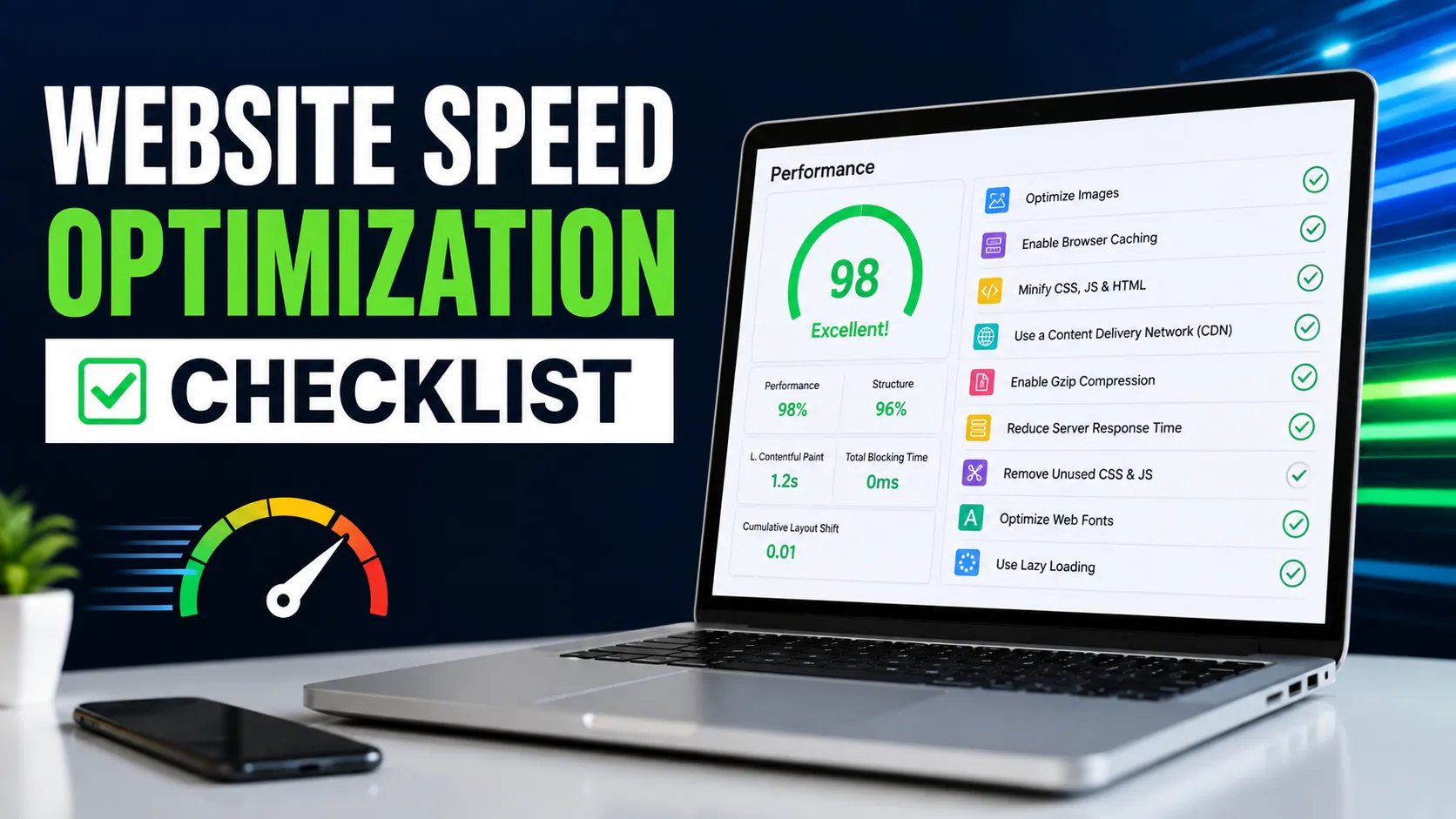
- Test your website speed with PageSpeed Insights, GTmetrix, and Search Console
- Review your hosting plan and server response time
- Enable one properly configured caching solution
- Compress all images before uploading
- Convert images to WebP or AVIF where possible
- Remove unnecessary, outdated, or duplicate plugins
- Switch to a lightweight, well-coded theme
- Minify CSS, JavaScript, and HTML
- Reduce or defer third-party scripts
- Clean and optimize the database (after a backup)
- Set up a CDN
- Address Core Web Vitals (LCP, INP, CLS)
- Update WordPress core, plugins, themes, and PHP
- Retest speed after each round of changes
Frequently Asked Questions
How do I fix a slow WordPress website?
Start by testing your site with PageSpeed Insights and GTmetrix to see what’s actually causing the slowdown. Then work through hosting, caching, image optimization, plugin cleanup, and Core Web Vitals in order. Retest after each change so you know what’s actually making a difference.
Why is my WordPress website so slow?
Usually a combination of weak hosting, large uncompressed images, too many or poorly coded plugins, a heavy theme, and missing caching. Database bloat and third-party scripts often contribute too. Testing your site reveals which of these apply to you specifically.
How can I speed up WordPress?
Focus first on hosting quality and caching, since these have the biggest overall impact. Then compress images, remove unused plugins, switch to a lightweight theme, and minify your CSS and JavaScript. Each step builds on the last.
How can I improve WordPress loading time?
Reduce what the browser has to download and how long the server takes to respond. That means compressing images, enabling caching, minifying code, using a CDN, and trimming unnecessary plugins and scripts that add extra load time.
Do WordPress plugins slow down a website?
Not automatically – a well-coded plugin that’s actually in use rarely causes noticeable slowdown. The problem is usually outdated, poorly built, or duplicate plugins doing overlapping jobs. Regularly auditing your plugin list helps catch these before they add up.
Does WordPress hosting affect website speed?
Yes, significantly. Hosting determines server response time (TTFB), how well your site handles traffic spikes, and overall uptime. No amount of plugin optimization fully makes up for a server that’s too slow or overcrowded to respond quickly.
How do I improve WordPress Core Web Vitals?
Improve LCP by optimizing your hosting and hero images, improve INP by reducing heavy JavaScript and third-party scripts, and improve CLS by setting fixed dimensions on images and ads. Test with PageSpeed Insights and Search Console to track progress over time.
When should I hire a WordPress speed optimization expert?
Consider professional help if your site is still slow after basic fixes, Core Web Vitals remain poor, or you’re dealing with plugin conflicts and custom code issues you can’t diagnose yourself. It’s especially worth it for revenue-generating sites where downtime or slow pages have a direct cost.
Conclusion
Fixing a slow WordPress website really comes down to finding out what’s actually slowing it down before you start changing things. Instead of randomly trying plugins or hoping a quick fix will work, take a closer look at your hosting, caching, image sizes, plugins, theme, JavaScript, and database. Then, fix each issue one at a time and test your site again.
A CDN can help too, especially if you have visitors coming from different locations. And, of course, keeping an eye on Core Web Vitals is important for maintaining good performance over time.
At the end of the day, learning how to fix a slow WordPress website performance isn’t about getting a perfect score on every speed-testing tool. It’s about finding the real problems and fixing them in the right order.
If you’ve gone through all of these steps and your site still feels slow, WP Badgers can help you figure out what’s really going on. Sometimes the issue goes deeper than a basic plugin setup, and that’s where having someone take a closer look can save you a lot of time and frustration.