

If your WordPress website loads slowly, you’re not alone—and it’s probably hurting your SEO more than you think. Slow sites frustrate visitors, increase bounce rates, and quietly push your rankings down on Google. The good news? You don’t need to be a developer to fix most speed issues. This guide walks you through simple, proven steps to improve WordPress site speed and boost SEO.
What Is WordPress Site Speed?
WordPress site speed is the time your website takes to load and become usable for visitors. It includes page load time, server response time, and how quickly users can interact with content. Faster WordPress sites deliver a better user experience and are favored by search engines like Google.
Why Does WordPress Site Speed Matter?
How Does Slow Site Speed Affect Users?
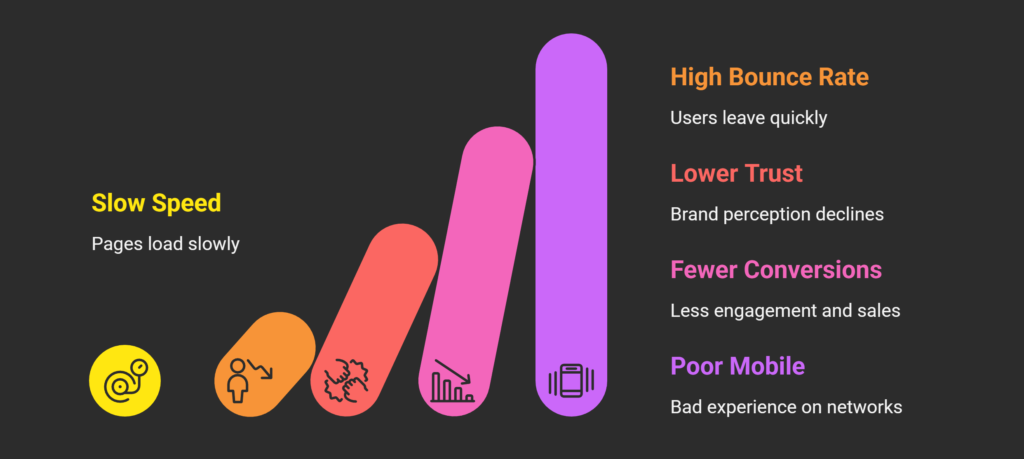
Slow websites create immediate friction. Visitors expect pages to load in under 3 seconds—anything longer feels broken.
Real impacts include:
- Users leaving before the page loads (high bounce rate)
- Lower trust in your brand or business
- Fewer form submissions, signups, or sales
- Poor mobile experience on slow networks
From my experience auditing WordPress sites, even a 1–2 second delay can cut conversions by 20–30%, especially on mobile.
Common Myths or Misunderstandings About Site Speed
Many beginners believe:
- “Speed only matters for big websites” (False — Google applies it to all sites)
- “Installing one plugin will fix everything” (Rarely true)
- “Themes don’t affect speed” (They often do)
Google’s Core Web Vitals documentation clearly states that page experience is a ranking signal, regardless of site size.
Not sure how to audit your WordPress site properly? This step-by-step WordPress SEO audit guide will help you find and fix issues easily.
Common Challenges People Face With WordPress Site Speed
Most beginners struggle with speed because WordPress is flexible—but easy to overload.
Common problems include:
- Cheap or slow web hosting
- Heavy themes with unnecessary features
- Too many plugins doing similar jobs
- Unoptimized images uploaded directly from phones
- No caching or performance setup
Ignoring these issues leads to slower indexing, ranking drops, and wasted content efforts.
How to Improve WordPress Site Speed the Right Way
Step 1 – How Do You Check Your WordPress Site Speed?
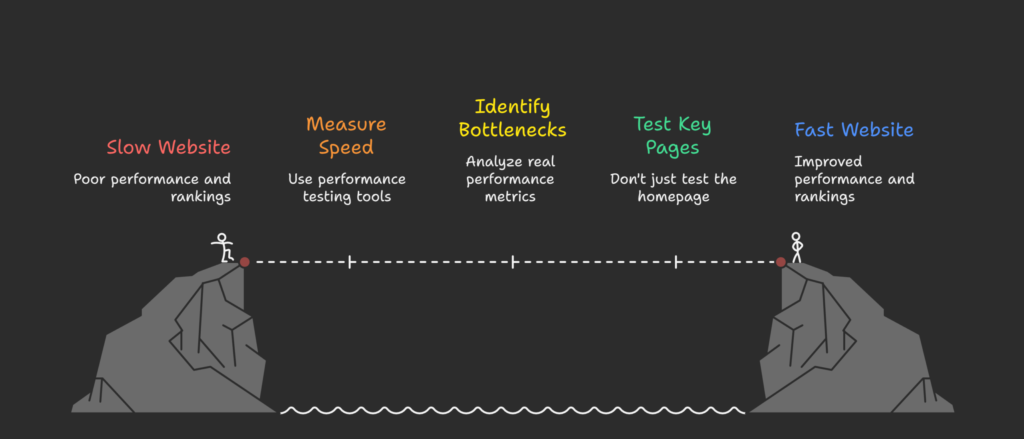
Before fixing anything, you need to measure the problem.
Use these tools:
- Google PageSpeed Insights (official Google tool)
- GTmetrix
- Google Search Console → Core Web Vitals
Why this works:
These tools show real performance metrics like LCP, CLS, and INP, which Google uses for rankings.
Common mistake to avoid:
Only checking homepage speed—always test blog posts and key pages too.
Step 2 – How Can Better Hosting and Caching Improve Speed?
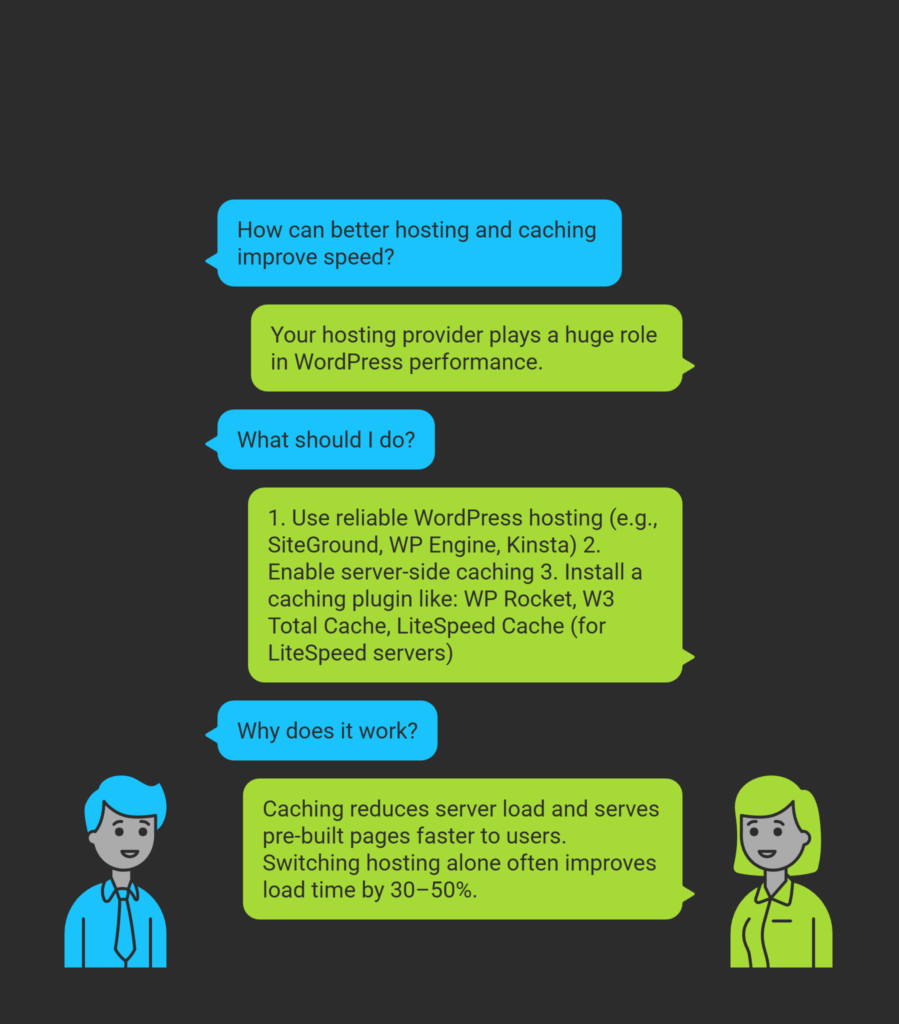
Your hosting provider plays a huge role in WordPress performance.
What to do:
- Use reliable WordPress hosting (e.g., SiteGround, WP Engine, Kinsta)
- Enable server-side caching
- Install a caching plugin like:
- WP Rocket
- W3 Total Cache
- LiteSpeed Cache (for LiteSpeed servers)
Why it works:
Caching reduces server load and serves pre-built pages faster to users.
From real audits I’ve done, switching hosting alone often improves load time by 30–50%.
Step 3 – How Do You Optimize Images Without Technical Skills?
Images are the #1 reason WordPress sites load slowly.
Best practice:
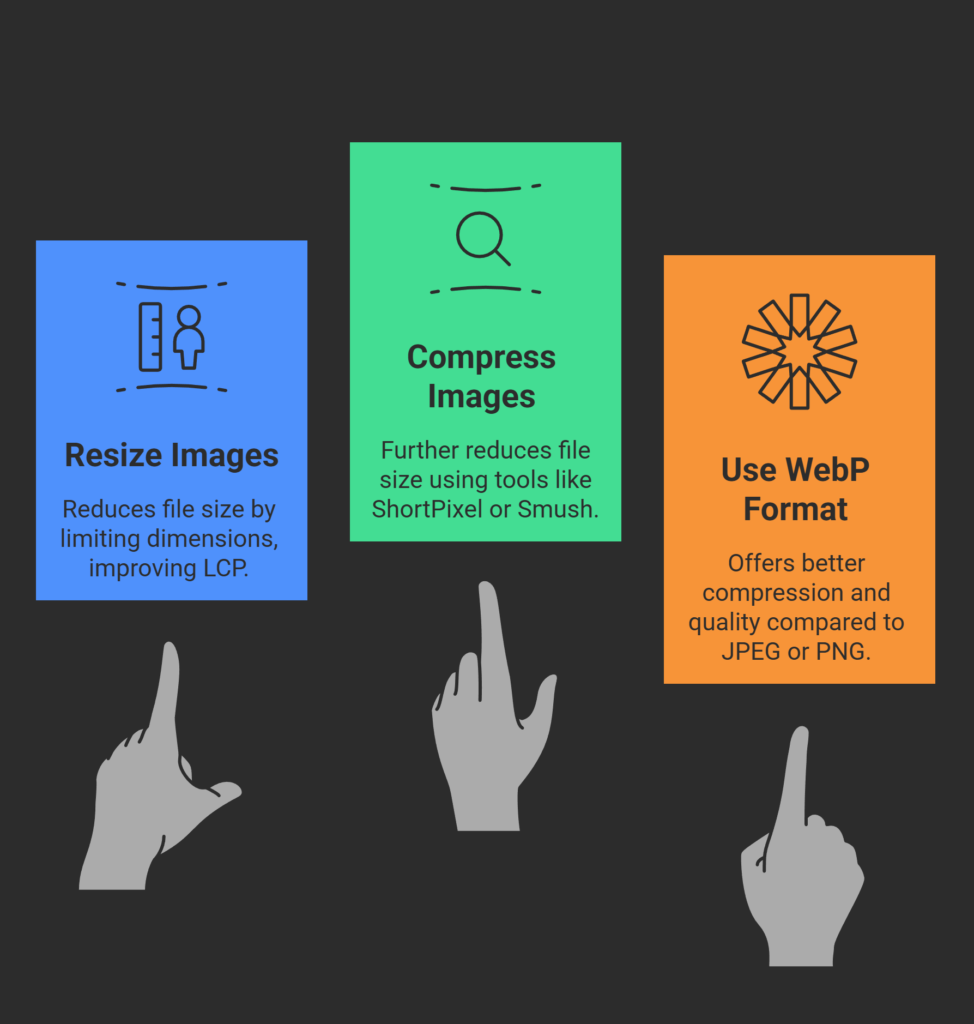
- Resize images before uploading (max 1200–1600px width)
- Compress images using:
- ShortPixel
- Smush
- Imagify
- Use modern formats like WebP
Why it works:
Smaller image sizes reduce page weight, improving Largest Contentful Paint (LCP).
Expert tip:
Never upload images directly from your phone or camera without compression.
Step 4 – How Do Plugins and Themes Affect WordPress Speed?
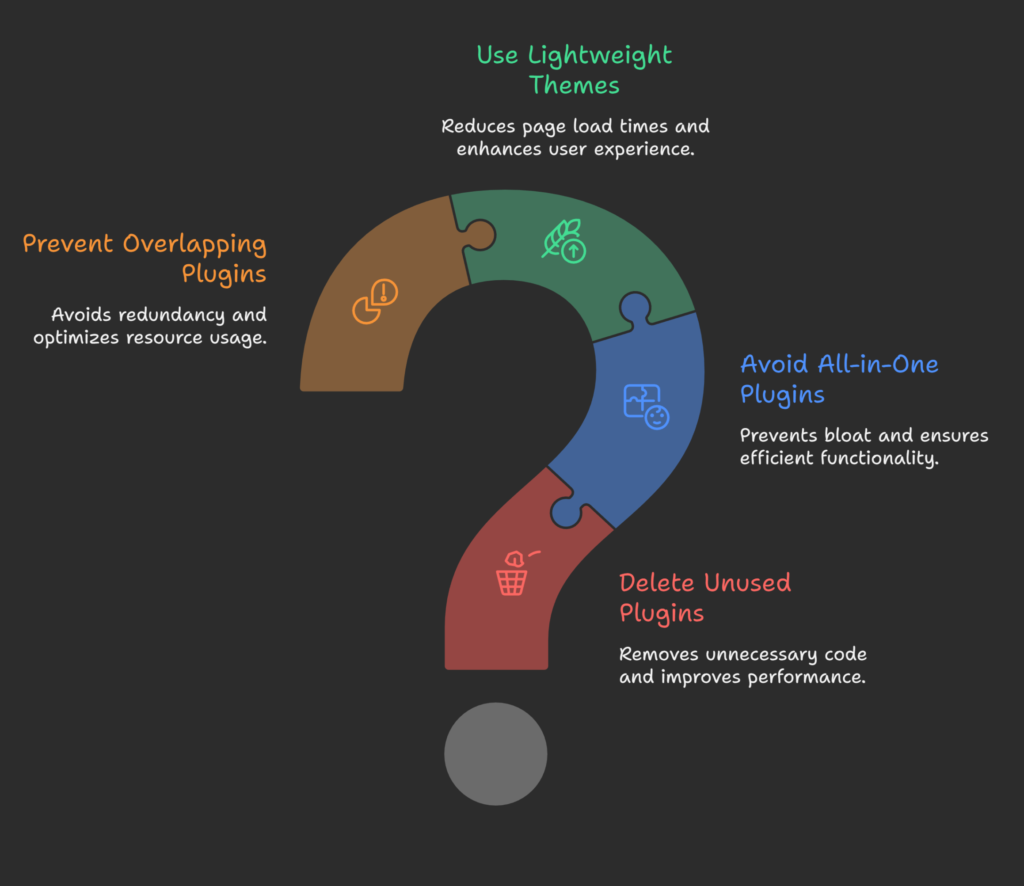
Every plugin adds code—and too many slow things down.
What to do:
- Delete unused plugins (not just deactivate)
- Avoid “all-in-one” plugins you don’t fully use
- Use lightweight themes like:
- Astra
- GeneratePress
- Kadence
Common mistake:
Installing multiple plugins for SEO, caching, and images that overlap in functionality.
Step 5 – What Advanced Practices Improve Speed Further?
Once basics are done, apply these best practices:
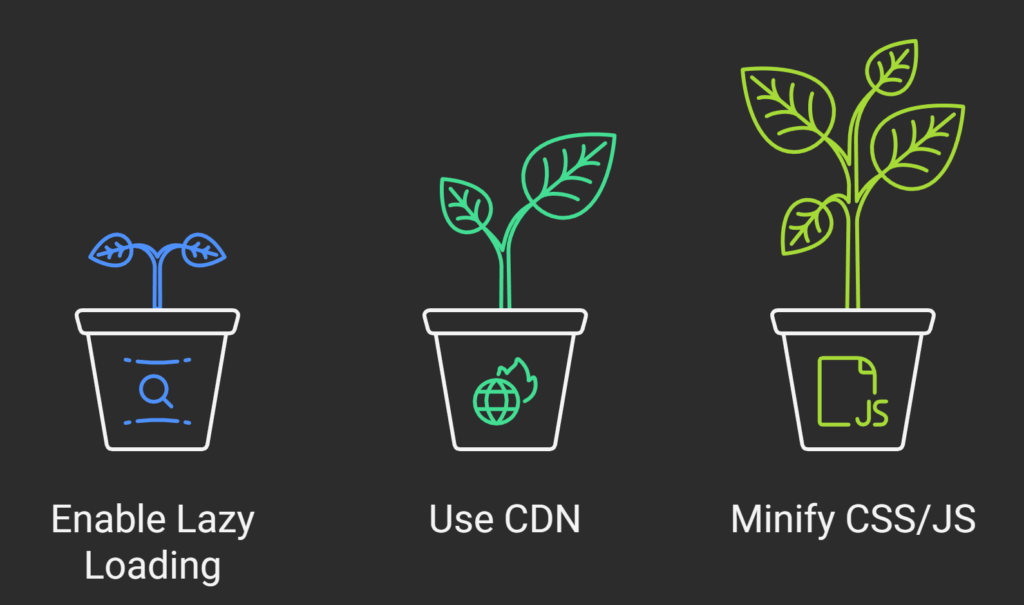
- Enable lazy loading for images and videos
- Use a CDN like Cloudflare
- Minify CSS and JavaScript (via WP Rocket or Autoptimize)
Why it works:
CDNs serve content from locations closer to users, reducing latency worldwide.
In real-world tests, Cloudflare alone can reduce global load time by 20–40%.
Before investing time in WordPress, you should know whether it’s still good for SEO—here’s an honest breakdown of WordPress SEO in 2026.
Frequently Asked Questions About WordPress Site Speed
Why is improving WordPress site speed difficult for beginners?
Because WordPress hides technical complexity behind plugins and themes. Beginners often don’t know which tools help and which slow things down. Without clear measurement tools, it’s easy to guess instead of fixing real issues.
What mistakes make WordPress site speed worse?
Common mistakes include installing too many plugins, using heavy themes, ignoring image optimization, and choosing cheap hosting. Another big mistake is blindly following outdated speed tips without checking Core Web Vitals.
How long does it take to see SEO results after improving speed?
User experience improves immediately, but SEO impact usually appears in 2–6 weeks. Google needs time to re-crawl and reassess your Core Web Vitals through Search Console data.
Are there risks involved in optimizing WordPress speed?
Yes, if done incorrectly. Aggressive caching or script minification can break layouts or forms. Always take a backup before making changes and test your site after each optimization.
What should I avoid while fixing WordPress site speed?
Avoid installing multiple speed plugins, editing core files without knowledge, and trusting “one-click speed fixes.” Also avoid ignoring mobile performance—Google uses mobile-first indexing.
Final Takeaways: Improve WordPress Site Speed Without Stress
Key points to remember:
- Site speed directly affects SEO, users, and conversions
- Measure first using Google PageSpeed Insights
- Fix hosting, caching, images, and plugins step by step
- Focus on Core Web Vitals, not vanity scores
- Small improvements compound into big SEO wins
Next step:
Apply these steps to your WordPress site today. If you want a professional speed audit or SEO-focused performance optimization, consider working with an experienced WordPress SEO expert who understands both rankings and real users.
Get Started Today
We are always here to
help you achieve the unimaginable

![Why Is My Website Not Showing Up on Google [Guide to Fixing]](https://wpbadgers.com/wp-content/uploads/2026/02/Why-Is-My-Website-Not-Showing-Up-on-Google-Guide-to-Fixing-768x432.png)
![How to Perform a WordPress SEO Audit [Step-by-Step Guide for Beginners]](https://wpbadgers.com/wp-content/uploads/2026/01/How-to-Perform-a-WordPress-SEO-Audit-Step-by-Step-Guide-for-Beginners-768x432.png)