
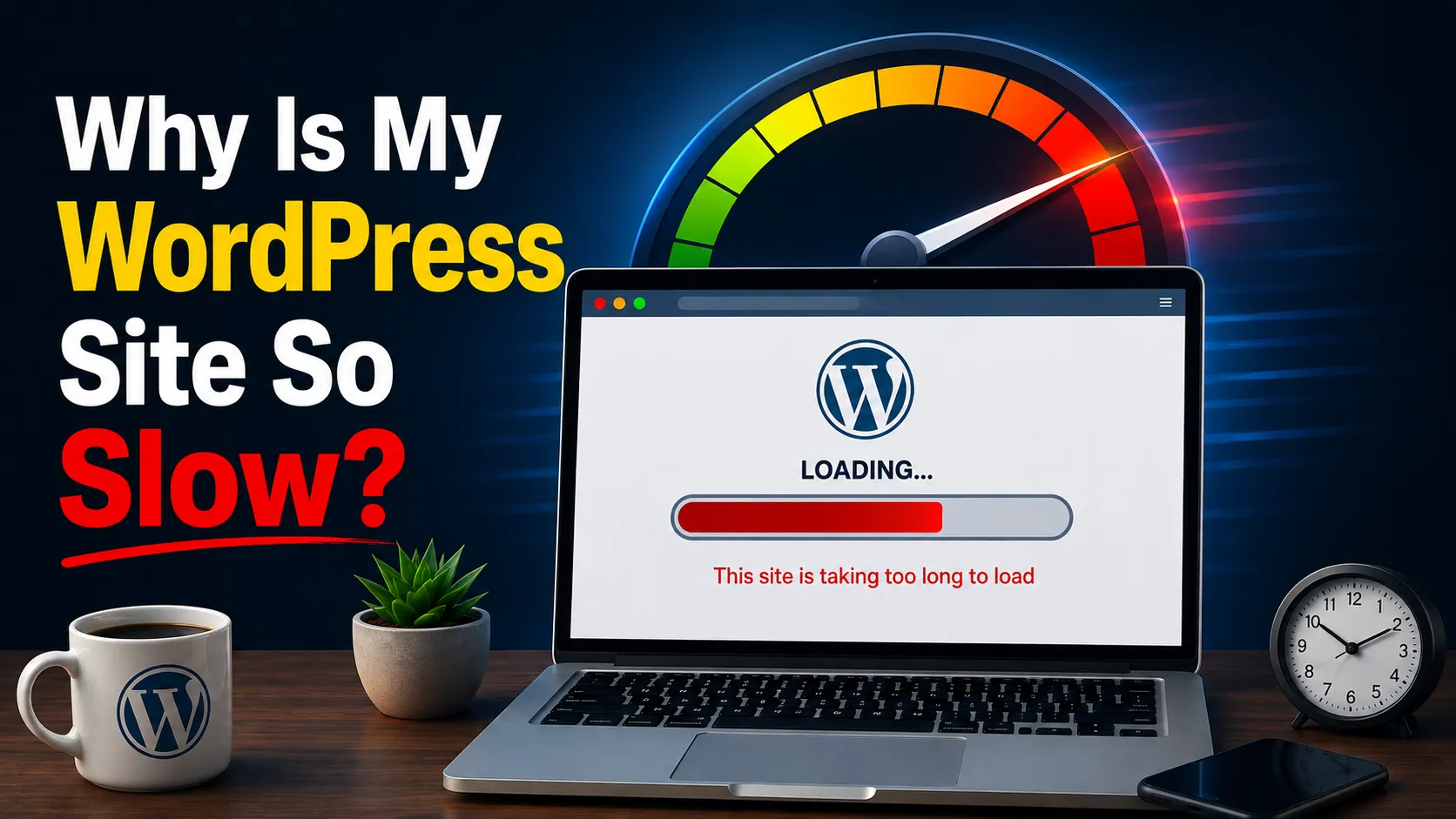
You didn’t change your theme. You didn’t install a bunch of new plugins overnight. But somehow, your WordPress site has started to feel like it’s moving through mud. You’re sitting there, watching that loading spinner, thinking, “What happened?”
Honestly, this is one of the most common problems WordPress site owners deal with, and there’s usually no single reason behind it. If you’re wondering, “Why is my WordPress site so slow?”, the answer could be a combination of things-poor hosting, oversized images, too many plugins, badly coded plugins, a heavy theme, an unoptimized database, too much JavaScript or CSS, missing caching, or even outdated software.
And here’s the good news: you can fix it.
The not-so-good news? There’s no magic “install this one plugin” button that suddenly makes everything fast. Before you start adding more plugins or changing random settings, you need to figure out what’s actually slowing your site down.
Once you know what’s causing the problem, fixing it becomes a whole lot easier.
Why Is My WordPress Site So Slow?
In short, a slow WordPress site usually comes from a combination of weak hosting, unoptimized images, too many or bloated plugins, a heavy theme, missing caching, excessive JavaScript/CSS, and an unoptimized database. Website speed isn’t controlled by one setting – it’s the result of several layers working together: your hosting environment, WordPress configuration, plugins, theme code, media files, and even the visitor’s own device and network. When one of those layers underperforms, the whole site slows down, even if everything else is fine.
15 Real Reasons Your WordPress Site Is Slow
1. Cheap or Poor-Quality WordPress Hosting
Hosting is the foundation everything else sits on. If your server doesn’t have enough CPU, RAM, or I/O capacity – which is common on cheap shared hosting plans – every other optimization has a ceiling it can’t break through.
Slow admin dashboard, high Time to First Byte (TTFB), or a site that slows down noticeably during traffic spikes. Shared hosting means you’re splitting resources with other websites, and server location matters too — a server far from your audience adds latency.
Fix: Check your hosting plan’s resource limits and consider upgrading to managed WordPress hosting or a VPS if your site handles real traffic or WooCommerce orders. [Internal Link Opportunity: WordPress Website Maintenance]
2. Too Many WordPress Plugins
Plugin count alone isn’t automatically the problem – plenty of sites run 30+ plugins without issue. It’s the quality and necessity of those plugins that matters.
Plugins you installed once and forgot about, plugins that duplicate functionality, or ones that load scripts and styles on every page even when they’re not needed there.
Fix: Audit your plugin list. Deactivate and delete anything you’re not actively using, and check plugin performance impact using a tool like Query Monitor before assuming a plugin is safe to keep.
3. Heavy or Poorly Coded WordPress Theme
A visually impressive theme isn’t always a technically efficient one. Themes built with heavy page builders, built-in sliders, animation libraries, and “all-in-one” feature sets often load far more code than a typical page actually needs.
A theme with dozens of unused customization options, animations that fire even when not visible, or dashboard settings pages that take a long time to load.
Fix: Consider a lightweight, well-coded theme, or have a developer strip out unused theme features. This is often one of the highest-impact changes for WordPress speed issues on visually heavy sites.
4. Large and Unoptimized Images
Images are one of the most common – and easiest to fix – causes of a slow WordPress website. A single unoptimized photo can be several megabytes, which is enormous compared to what a webpage actually needs.
Images uploaded at their original camera resolution, no compression, and no modern format like WebP or AVIF.
Fix: Resize images to the dimensions they’re actually displayed at, compress them, convert to WebP/AVIF where supported, use responsive image sizes (srcset), and enable lazy loading for images below the fold.
5. No Page Caching
Without caching, WordPress rebuilds each page from scratch on every visit — querying the database, running PHP, and assembling the page every single time. That’s a lot of unnecessary work for pages that rarely change.
Pages that load noticeably faster on a second visit only because your browser cached some assets, not because the server is actually serving a cached page.
Fix: Enable page caching through your host (many managed hosts include this) or a reputable caching plugin, and make sure browser caching headers are configured for static assets.
6. Too Much JavaScript
JavaScript is often render-blocking, meaning the browser has to download and process it before it can finish displaying the page. Sliders, chat widgets, tracking scripts, and third-party embeds all add up.
A long list of scripts in your browser’s network tab, several of which come from third-party domains you don’t recognize.
Fix: Remove unnecessary scripts, defer or async non-critical JavaScript, and question whether every widget on your site is earning its place. [Internal Link Opportunity: Website Performance Optimization]
7. Bloated CSS and Unused Code
Themes and page builders frequently load a single massive stylesheet across the entire website, even on pages that use only a fraction of those styles.
A CSS file that’s several hundred kilobytes, or dozens of separate stylesheets loading on one page.
Fix: Remove unused CSS where safe, combine stylesheets where appropriate, and avoid loading page-builder-specific CSS on pages that don’t use that builder.
8. Poorly Optimized WordPress Database
Over time, your WordPress database accumulates a lot of clutter: post revisions, expired transients, spam comments, and orphaned metadata left behind by uninstalled plugins.
A database that’s grown significantly larger than expected relative to your actual content, or slow admin screens like Posts and Pages.
Fix: Clean up post revisions, delete spam/trash comments, remove expired transients, and periodically optimize database tables. This is a common and often overlooked cause of a slow WordPress site, especially on older installations.
9. Too Many External Requests
Every font, analytics script, social media widget, ad network, map embed, or video player is a separate request to a separate server – and each one adds its own connection time and potential delay.
A network waterfall (visible in Chrome DevTools) showing dozens of third-party domains being contacted before the page finishes loading.
Fix: Audit third-party embeds honestly. Keep what drives real value, remove what doesn’t, and self-host fonts where practical.
10. No Content Delivery Network (CDN)
A CDN stores copies of your static files (images, CSS, JavaScript) on servers distributed around the world, so visitors load content from a location near them instead of a single origin server.
Noticeably slower load times for visitors located far from your hosting server’s region.
Fix: Set up a CDN through your host or a third-party service. It won’t fix every performance issue, but it meaningfully helps geographically distant visitors and reduces load on your origin server.
11. Outdated WordPress, Plugins, or PHP
Running outdated WordPress core, outdated plugins, or an old version of PHP isn’t just a security risk -it can directly hurt performance, since newer PHP versions include real speed improvements.
What to look for: A PHP version older than what your host currently recommends, or plugins that haven’t been updated in over a year.
Fix: Keep WordPress, themes, and plugins updated, and upgrade PHP versions – but test updates on a staging site first, since compatibility issues can occasionally cause new problems.
12. Slow DNS or High Server Response Time
Before your page even starts loading, the browser has to resolve your domain through DNS and wait for the server to respond. If either step is slow, everything after it is delayed too.
High Time to First Byte (TTFB) in PageSpeed Insights or GTmetrix, even when the rest of the page is well optimized.
Fix: Use a fast, reliable DNS provider and confirm your hosting server has adequate resources for your actual traffic. Persistent high TTFB often points back to hosting quality (reason #1).
13. Too Many Redirects
Each redirect adds an extra round trip between the browser and server before the final page loads. A few redirects rarely matter, but redirect chains – where one redirect leads to another, and another – add up fast.
URLs that pass through two or three redirects before reaching their final destination, often left over from old site migrations or URL restructuring.
Fix: Audit your redirects and point them directly to the final URL instead of chaining through multiple hops. [Internal Link Opportunity: Technical SEO Services]
14. Poor Mobile Optimization
A site can feel perfectly fine on a fast desktop connection and still perform poorly on mobile, where processing power is lower and network conditions are less predictable.
A significant gap between your desktop and mobile PageSpeed Insights scores, or a theme that loads the same heavy assets regardless of device.
Fix: Test specifically on mobile, reduce assets served to mobile devices where possible, and prioritize mobile performance rather than treating it as an afterthought – most WordPress traffic today comes from mobile devices.
15. Core Web Vitals and Technical Performance Problems
Core Web Vitals are Google’s way of measuring real-world user experience, not just a lab score. Largest Contentful Paint (LCP) measures how long it takes for the main content to load. Interaction to Next Paint (INP) measures how responsive the site feels when a visitor clicks or taps something. Cumulative Layout Shift (CLS) measures how much content unexpectedly jumps around while loading.
Poor scores in Google Search Console’s Core Web Vitals report, or content visibly shifting as a page loads.
Fix: Address the root causes covered above – images, JavaScript, hosting, and caching -since Core Web Vitals problems are almost always symptoms of underlying issues rather than isolated bugs to patch individually.
How to Find Out What Is Making Your WordPress Site Slow
Before making changes, it helps to actually diagnose the bottleneck rather than guessing. A few tools worth using together:
- Google PageSpeed Insights – shows both lab data and real-world field data, plus Core Web Vitals scores for mobile and desktop separately.
- Google Search Console – the Core Web Vitals report shows how your site performs for actual visitors over time, not just a single test.
- Chrome DevTools – the Network tab shows a request waterfall, revealing exactly which files are large, slow, or render-blocking.
- GTmetrix and WebPageTest – useful for deeper waterfall analysis and testing from different server locations.
How to Improve WordPress Site Speed
Once you know what’s actually slowing things down, prioritize fixes based on real impact rather than tackling everything at once:
- Upgrade hosting if server resources are the bottleneck.
- Remove unnecessary or redundant plugins.
- Optimize and compress images, and convert to WebP/AVIF.
- Enable page and browser caching.
- Set up a CDN for static assets.
- Minify and optimize CSS and JavaScript where safe to do so.
- Reduce third-party scripts to only what’s necessary.
- Clean and optimize the database regularly.
- Optimize font loading (self-host where practical).
- Improve mobile-specific performance.
- Keep WordPress core, plugins, and PHP updated.
- Monitor Core Web Vitals over time, not just once.
None of these fixes should be applied blindly – the goal is to improve site speed where it actually matters for your specific site, not to check boxes on a generic list.
When Should You Hire a WordPress Speed Optimization Expert?
Plenty of performance issues can be solved with the steps above. But there are situations where bringing in professional help makes sense:
- Speed problems persist even after basic optimization steps have been completed.
- The site runs WooCommerce, which adds database and plugin complexity.
- The plugin count is high and interdependent, making changes risky without testing.
- Custom code or a custom theme is involved.
- Core Web Vitals remain poor despite obvious fixes being applied.
- Server response time (TTFB) stays high regardless of caching changes.
- Technical SEO performance is being affected by speed issues.
- The business relies heavily on organic traffic or conversions, where every second matters.
- You’re not confident which changes are safe to make without breaking the site.
At WP Badgers, the goal isn’t simply to make a PageSpeed score look better. A proper WordPress speed optimization process looks at the underlying causes – hosting, code, images, plugins, caching, database performance, and Core Web Vitals – and prioritizes fixes based on their real impact on user experience and business goals, not just a single number. [Internal Link Opportunity: WordPress Speed Optimization]
It’s worth being upfront here: a higher PageSpeed score doesn’t automatically translate into better rankings or more conversions. It’s one useful signal among several, and improving actual user experience is the more meaningful goal. [Internal Link Opportunity: WordPress
Frequently Asked Questions About WordPress Website Speed
Why is my WordPress site so slow?
A WordPress site is usually slow due to a combination of factors rather than one single cause – commonly weak hosting, unoptimized images, too many or poorly coded plugins, a heavy theme, missing caching, and an unoptimized database. Diagnosing which of these applies to your site is the first step before making changes.
Why is my WordPress site slow even with good hosting?
Good hosting removes one variable, but it doesn’t fix everything else. A bloated theme, unoptimized images, excessive JavaScript, missing caching, or a cluttered database can all slow down a site regardless of how strong the server is underneath it.
Can too many plugins slow down WordPress?
Plugins can slow down WordPress, but the number alone isn’t the real issue – it’s whether each plugin is well-coded, necessary, and loading only where it’s needed. A handful of poorly built plugins can cause more harm than twenty efficient ones.
How can I improve my WordPress site speed?
Start by diagnosing the actual bottleneck using tools like Google PageSpeed Insights and Chrome DevTools, then address the highest-impact issues first – usually hosting, images, caching, and unnecessary plugins – before fine-tuning smaller technical details.
What is a good WordPress page load time?
There’s no single universal number, but as a general guideline, aim for a Largest Contentful Paint (LCP) under 2.5 seconds and a low Cumulative Layout Shift (CLS). Real-world performance across devices and network conditions matters more than one lab test score.
Does website speed affect SEO?
Yes, website speed is part of Google’s ranking considerations through Core Web Vitals and overall user experience signals. That said, speed is one factor among many, not the only one – content quality and relevance still matter significantly.
Does a CDN make WordPress faster?
A CDN can meaningfully improve load times for visitors located far from your hosting server by serving static files from a nearby location. It’s not a complete fix on its own, but it’s a valuable part of a broader speed strategy.
Should I hire a WordPress speed optimization expert?
It’s worth considering if speed problems persist after basic fixes, your site runs WooCommerce or custom code, or you’re unsure which changes are safe to make. A professional can diagnose root causes rather than applying generic fixes that may not address the real issue.
Getting Real Help When Basic Fixes Aren’t Enough
If you’ve already compressed your images, trimmed down your plugin list, and turned on caching – but your WordPress site is still slow – the problem may be sitting somewhere deeper than a quick settings change can reach. That’s often where hosting configuration, database bloat, or theme-level code comes into play. WP Badgers can help identify the actual technical bottleneck and prioritize the fixes that will make the most measurable difference for your specific website.
Conclusion
A slow WordPress website is usually not caused by just one thing. In most cases, it’s a combination of smaller issues-poor hosting, large or unoptimized images, too many plugins, a heavy theme, missing caching, bloated code, or a cluttered database. Each issue may slow things down a little, but together, they can make your entire site feel painfully slow.
If you’ve been wondering, “Why is my WordPress site so slow?”, the best thing you can do is stop guessing and figure out what’s actually causing the problem. Instead of trying random fixes one by one, identify the bottleneck first and then work on it.
And honestly, website speed isn’t really a “fix it once and forget about it” kind of thing. As you add new content, install plugins, update your theme, or start getting more traffic, your site can gradually slow down again. That’s why keeping an eye on performance should be part of your regular WordPress maintenance.
You can handle many of these improvements yourself, or you can work with a team like WP Badgers if you’d rather have someone diagnose the technical issues and take care of them for you. At the end of the day, the goal is pretty simple: make your WordPress website faster, more reliable, and easier for your visitors to use.