
Key Takeaways
- Instant Speed Boost: One of the biggest reasons people use WP Rocket is that it can give your site a noticeable speed boost without requiring a ton of technical work. Once configured properly, features like page caching and GZIP compression can help reduce server response times and deliver pages faster.
- Better Core Web Vitals: When WP Rocket is configured correctly, it can help improve important performance metrics like Largest Contentful Paint (LCP) and Interaction to Next Paint (INP). In simple terms, your pages can load faster and feel more responsive to visitors.
- Optimize Your CSS and JavaScript: Here’s where things can get a little technical, but the idea is pretty simple. Features like CSS and JavaScript minification and delaying JavaScript execution can reduce unnecessary processing and help prevent certain files from slowing down the initial page load—all without messing up your site’s design when configured properly.
- Smarter Image Loading: Images can be a major reason a website feels slow. WP Rocket can help by enabling lazy loading, replacing YouTube iframes with preview images, and adding missing image dimensions. These improvements can reduce unnecessary loading and help keep your pages more visually stable, which is important for your Cumulative Layout Shift (CLS) score.
- Keep Your Database Clean: Over time, WordPress databases can collect things you don’t really need, such as old post revisions, database overhead, and expired transient options. Regular cleanup can help keep your database lean and reduce unnecessary clutter, which can contribute to a smoother-performing website.
- E-Commerce Friendly: If you’re running a WooCommerce store, caching needs to be handled carefully because cart and checkout pages are dynamic. WP Rocket can exclude pages that shouldn’t be cached, helping ensure customer sessions, carts, and checkout processes continue to work properly while the rest of your site benefits from caching.
A single second of delay can cost a business a surprising amount of revenue. In today’s digital world, website speed isn’t some nice-to-have feature—it’s a big part of the user experience and your overall search visibility. If your pages take too long to load, people may simply leave before they even get a chance to see what you offer. And because Google considers page experience and performance when evaluating websites, a slow site can also make it harder to compete in search results.
WordPress SEO Services can work even better when paired with proper website performance optimization. This 2026 guide to WP Rocket settings will walk you through practical ways to improve your site’s loading speed, create a smoother user experience, strengthen your Core Web Vitals, and support your overall SEO performance.
The problem is that dealing with server settings, caching rules, JavaScript, CSS, and optimization scripts can get pretty overwhelming—especially if you’re not a developer. That’s where WP Rocket can make things much easier. It’s a popular premium WordPress caching and performance plugin that brings many technical optimization features into a relatively simple dashboard.
In this comprehensive WP Rocket setup guide, we’ll go through the key settings and optimization features step by step. You’ll learn what each option does, which settings are worth enabling, and what to watch out for so you don’t accidentally break parts of your website. By the end, you’ll have a much clearer idea of how to use WP Rocket to make your WordPress site faster, more responsive, and better equipped to convert visitors into customers. Let’s get started.
Getting Started with the WP Rocket Setup Guide
Setting up your optimization tool correctly from day one prevents performance bottlenecks and conflicts down the road. WP Rocket is a premium plugin, meaning you need to download the installation package directly from your account dashboard after purchasing a license.
Installation and Activation Steps
First, log into your WordPress admin dashboard. Navigate to Plugins > Add New > Upload Plugin. Select the .zip file you downloaded from WP Rocket, click Install Now, and then hit Activate.
Unlike standard plugins that require immediate complex configurations, WP Rocket initiates basic performance improvements the exact moment it goes live.
WordPress Dashboard ➔ Plugins ➔ Add New ➔ Upload ZIP ➔ Activate
Automatic Enhancements Upon Activation
The moment you click activate, the plugin immediately deploys several high-impact optimizations behind the scenes without needing any manual setup:
- Page Caching: Creates static HTML files of your dynamic pages to reduce database queries.
- GZIP Compression: Compresses your web pages on the server level so browsers can download them much faster.
- Browser Caching: Stores essential static files directly on the visitor’s local computer, making subsequent visits almost instant.
- Cross-Origin Support: Optimizes web fonts and assets across different domains smoothly.
Dashboard Overview
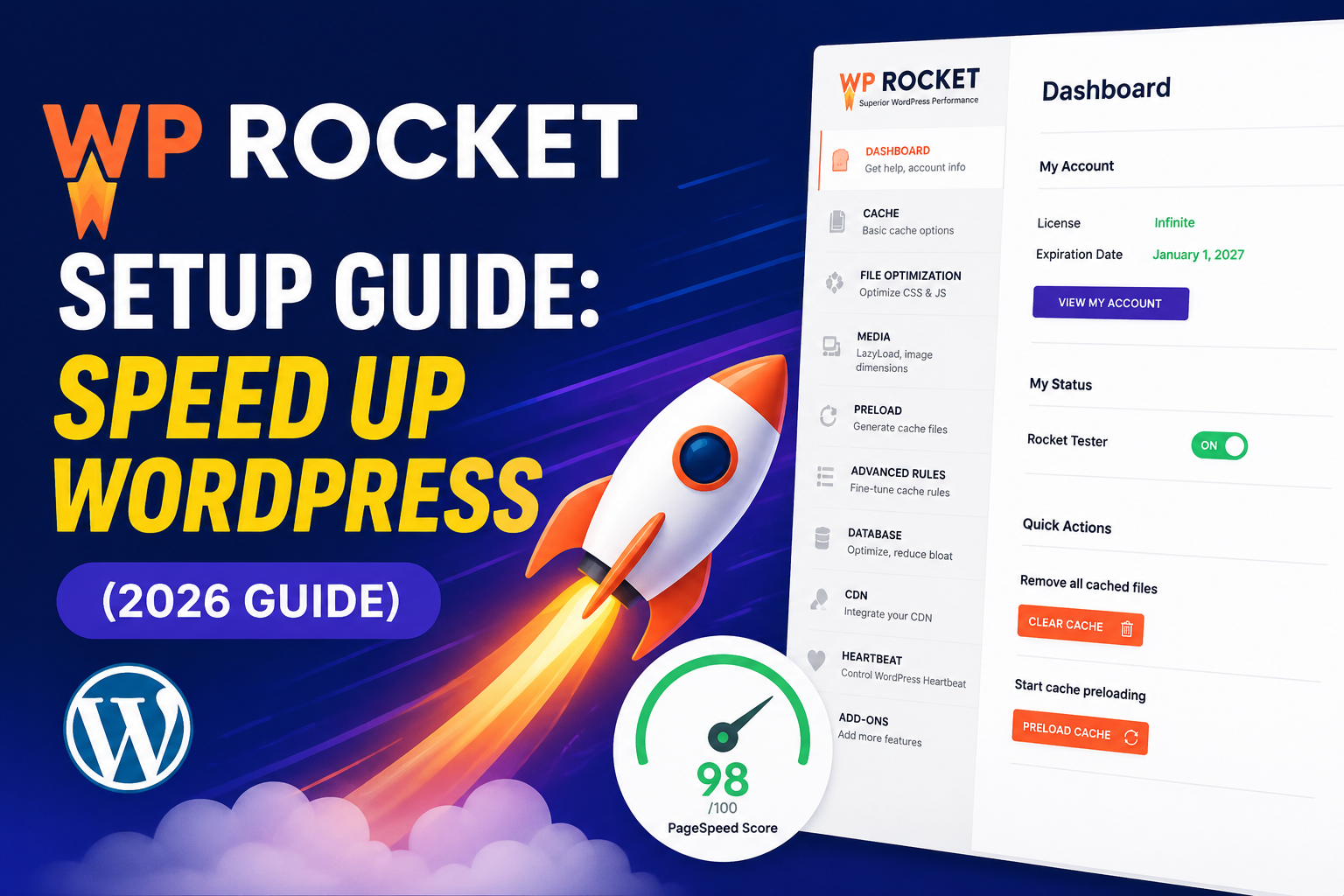
When you navigate to Settings > WP Rocket, you are greeted by a clean, modern interface. The primary tab gives you a birds-eye view of your account status, expiration date, and quick action buttons.
From here, you can clear the entire cache, regenerate critical CSS, or pre-load your pages manually. Keep this tab open as we systematically move through the advanced performance settings.
Advanced Cache Settings for Ultimate Performance
Caching is the process of storing temporary copies of your website’s files so servers do not have to recreate pages from scratch for every single visitor. Configuring your WP Rocket cache settings perfectly balances blazing-fast performance with real-time accuracy for your users.
[User Requests Page] ➔ [Is Static HTML Cached?]
                         ├── YES ➔ Serve Cached Page (Ultra Fast)
                         └── NO  ➔ Run PHP & Database ➔ Cache & Serve
Mobile Caching Options
Mobile traffic accounts for more than half of global web traffic. Under the Cache tab, ensure that Enable caching for mobile devices is checked.
Additionally, check the box for Separate cache files for mobile devices. This is vital if you run a responsive theme or use specialized mobile layouts, as it ensures smartphone users receive an asset delivery file optimized specifically for smaller screen sizes.
User Caching Configurations
By default, WP Rocket does not cache pages for logged-in WordPress users. If you run a membership platform, an online forum, or an e-commerce dashboard where users log in to view personalized data, you should check Enable caching for logged-in WordPress users.
Actionable Tip: If your website is a standard blog, portfolio, or business brochure site where only you log in to make edits, leave user caching unchecked. Caching logged-in users on a brochure site consumes unnecessary server resources and can cause you to view outdated pages while editing.
Setting the Cache Lifespan
Cache Lifespan dictates how long static files remain on your server before being deleted and refreshed. The default setting is 10 hours.
If you update your content frequently or publish multiple blog posts a day, lower this lifespan to 5 hours. If your site changes rarely, you can safely increase this to 24 or 48 hours, significantly reducing overall server load.
| Site Type | Recommended Cache Lifespan | Reason |
| E-Commerce / News | 5 – 10 Hours | Frequent stock updates, dynamic content, and fast-moving articles. |
| Business Brochure | 24 – 48 Hours | Content rarely changes; maximizes server resource savings. |
| Portfolio / Blog | 10 – 24 Hours | Good balance between content freshness and fast loading times. |
Optimizing File Infrastructure (CSS and JavaScript)
Bulky code files are the primary cause of slow rendering and frustrating layout shifts. The File Optimization tab in WP Rocket allows you to clean up, rearrange, and streamline your site’s structural code to speed up WordPress with WP Rocket.
CSS File Optimization
CSS handles the visual styling of your website. However, large stylesheets can block browsers from displaying your page quickly. Turn on Minify CSS files to strip away unnecessary spaces, line breaks, and comments from your code, reducing overall file sizes.
Next, enable Optimize CSS Delivery. This separates the styling needed for what a user sees first (Above-the-Fold content) from the rest of the page. WP Rocket generates Critical CSS automatically in the background, allowing the visible page layout to render instantly while the remaining styles load quietly underneath.
[Standard Load] ➔ Download All CSS ➔ Render Page (Slow)
[Optimized]     ➔ Render Critical CSS ➔ Display Page ➔ Load Remaining CSS (Instant)
JavaScript File Optimization
JavaScript adds interactive elements to your site, but poorly optimized scripts cause severe lag. Check Minify JavaScript files to shrink your scripts down to their absolute essentials.
Afterward, enable Load JavaScript deferred. This technique moves non-essential scripts to the bottom of the page loading sequence, preventing them from halting page layout generation.
Delaying JavaScript Execution
The absolute holy grail of modern web speed is the Delay JavaScript Execution feature. This setting stops scripts from running until a user interacts with the page (like moving the mouse, scrolling, or touching a mobile screen).
This is incredibly effective for delaying heavy third-party assets like tracking tags, chat widgets, and analytic scripts. It clears up your primary loading thread completely, giving your users a near-instant initial load experience.
Media Optimization to Boost Visual Loading Times
Images and videos make up over 60% of an average web page’s total file size. Unoptimized visuals drag your load speeds down heavily and ruin your Core Web Vitals performance metrics.
Implementing Lazy Loading
Lazy loading ensures images only load when they are about to appear on the user’s screen. Instead of forcing a visitor’s browser to download fifty images on a long landing page all at once, WP Rocket fetches them dynamically as the user scrolls down.
Turn on lazy loading for:
- Images
- CSS background images
- Iframes and videos
Handling Video Content Safely
Videos are incredibly resource-heavy. Ensure you check the box to Replace YouTube iframe with preview image.
With this setting enabled, WP Rocket loads a lightweight static thumbnail image instead of fetching the heavy, resource-draining YouTube video player. The actual video player only loads if a visitor explicitly clicks the play button.
[Standard Video] ➔ Load Heavy Video Player Engine ➔ Slow Page Load
[WP Rocket Setup]➔ Load Light Image Thumbnail ➔ Fast Page Load ➔ Load Player On Click
Fixing Missing Image Dimensions
A common cause of unstable layouts is missing width and height attributes in your image HTML code. When these dimensions are missing, browsers don’t know how much space to allocate, causing elements to jump around erratically as images load.
Check the Add missing image dimensions box. WP Rocket will automatically analyze your image files and write the correct dimensions directly into the HTML code, stabilizing your layout and improving your Cumulative Layout Shift (CLS) scores.
Preloading and Database Management Tactics
Preloading ensures your website stays one step ahead of your visitors, while database optimization keeps your underlying platform clean, responsive, and organized.
Intelligent Cache Preloading
When your cache is cleared, the next visitor to click onto your site normally experiences a slower page load because the server has to build that specific page again from scratch. Preloading completely eliminates this issue.
When you enable Preload Caching, WP Rocket uses your XML sitemap to automatically scan and generate static cached versions of every single page on your site. This ensures that every visitor—no matter when they arrive—receives a pre-packaged, hyper-fast page.
Sitemap Scan ➔ Background Page Generation ➔ Cached Pages Ready ➔ Instant Delivery to User
Link Preloading Explained
Link Preloading takes predictive delivery to the next level. When a user hovers their mouse cursor over a link on your website, WP Rocket reads that movement and preloads that specific target page in the background. By the time the user actually clicks the link, the page displays almost instantly.
Automated Database Cleans
Every time you save a blog post draft or update a page, WordPress stores a permanent revision in your database. Over months of regular maintenance, your database becomes cluttered with thousands of old drafts, deleted comments, and temporary transient options.
Navigate to the Database tab to set up routine cleanups. You can configure WP Rocket to securely delete:
- Old post revisions and auto-drafts
- Trashed comments and spam entries
- Expired transient data options
- Database table overhead optimization
Actionable Tip: Always perform a full manual backup of your WordPress site using a migration plugin or your hosting panel control dashboard before running database optimizations. While WP Rocket is extremely stable, updating and altering structural database tables carries inherent risks if power cycles or server updates happen concurrently.
Advanced Customization, E-Commerce, and CDN Integration
Complex websites require custom configurations to avoid conflicts. E-commerce platforms, custom membership portals, and international brands need specialized settings to deliver fast, secure experiences across the globe.
Securing E-Commerce Checkout Funnels
Dynamic page components like shopping carts, user accounts, and checkout pages must never be cached. If they are, customers might see someone else’s cart items or get blocked from finalizing their transactions.
Thankfully, WP Rocket features native, built-in configurations for major e-commerce systems like WooCommerce, BigCommerce, and Easy Digital Downloads. It automatically excludes checkout, cart, and account endpoints from caching the moment you activate the plugin.
If you use a custom cart plugin, you can manually input those URLs into the Never Cache URL(s) box under the Advanced Rules tab to protect your user experiences.
Integrating a Content Delivery Network (CDN)
A Content Delivery Network stores copies of your site’s images, CSS, and files across a global network of servers. When an international user visits your site, the CDN serves these files from the data center closest to them, eliminating geographic latency.
[Your Server: India] ➔ [Visitor: USA] ➔ Long Distance Latency (Slow)
[Your Server: India] ➔ [CDN Edge Server: USA] ➔ [Visitor: USA] ➔ Local Routing (Fast)
In the CDN tab, check the box to Enable Content Delivery Network. Input the unique CNAME URL provided by your CDN provider (such as RocketCDN, KeyCDN, or Bunny.net). WP Rocket will instantly rewrite your asset URLs, ensuring your images and scripts serve through the global edge network automatically.
To keep your digital infrastructure simple and highly accessible, we have compiled a quick summary mapping out how these interconnected settings optimize specific performance metrics.
Summary of Performance Matrix Configurations
| WP Rocket Feature | Impacted Core Metric | Optimization Goal |
| Delay JavaScript Execution | Interaction to Next Paint (INP) | Maximizes thread availability for user interactions. |
| Optimize CSS Delivery | Largest Contentful Paint (LCP) | Renders above-the-fold styling quickly. |
| Add Missing Image Dimensions | Cumulative Layout Shift (CLS) | Prevents elements from shifting during page load. |
| Link Preloading | Perceived Loading Speed | Begins loading target URLs on hover actions. |
Measuring Success: Before and After Optimization Metrics
Never guess whether your optimization strategy is working. You need to analyze concrete data and metrics to confirm your implementation yields positive performance results.
Selecting Diagnostic Speed Tools
Before changing configurations, run your website URL through reputable analysis tools to establish your performance baseline. Use these three platforms for precise diagnostics:
- Google PageSpeed Insights: Focuses on real-world user data and Core Web Vitals compliance.
- GTmetrix: Displays file size details, resource counts, and Waterfall loading charts.
- Pingdom Tools: Great for testing pure server response speeds from different global locations.
Decoding Core Web Vitals Performance
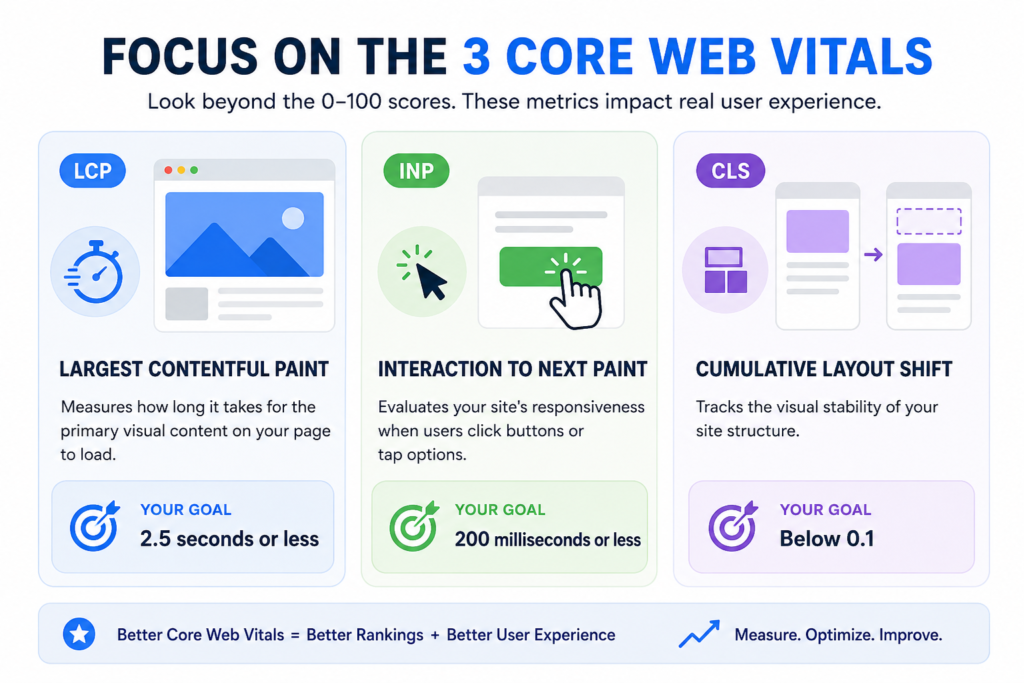
When reading your performance reports, look beyond the simple 0-100 grade scores. Focus heavily on these three essential Core Web Vitals metrics:
- Largest Contentful Paint (LCP): Measures how long it takes for the primary visual content on your page to load. Your goal is 2.5 seconds or less.
- Interaction to Next Paint (INP): Evaluates your site’s responsiveness when users click buttons or tap options. Your goal is 200 milliseconds or less.
- Cumulative Layout Shift (CLS): Tracks the visual stability of your site structure. Your goal is a score below 0.1.
Troubleshooting Layout and Script Breakages
Because minification and script deferrals fundamentally alter how code executes, some themes or plugins might conflict with advanced optimization. If you notice a layout breaking after applying settings, do not panic.
Use the process of elimination. Turn off JavaScript minification and refreshing your page. If the site fixes itself, you know a specific script is sensitive to adjustments.
You can find the problematic script name in your browser console and add it to the Excluded JavaScript Files box. This lets you keep the overall speed advantages of WP Rocket active while protecting that specific plugin’s core code.
If setting up advanced file exclusions or managing database queries feels too technical for your schedule, we are here to handle the heavy lifting for you. Explore our specialized WordPress SEO Services to discover how our engineering team optimizes code structure, layout design, and technical SEO architectures to help you dominate search rankings safely.
Boost Your Conversion Rates with WP Badgers
Optimizing code architectures, managing script dependencies, and perfecting cache settings requires deep technical expertise and continuous testing. At WP Badgers, we remove the guesswork from web performance optimization. Our dedicated engineering team has helped over 80+ businesses grow online by building ultra-fast, high-converting digital experiences. Let us manage your technical performance details so you can focus completely on scaling your business operations.
Frequently Asked Questions
Is WP Rocket better than free caching plugins?
Yes, WP Rocket provides superior value by combining advanced features like JavaScript delaying, automatic critical CSS generation, and link preloading into one single dashboard. Free plugins usually require installing multiple add-ons, which increases database bloat and configuration conflicts.
Will WP Rocket break my WordPress layout?
Standard caching and lazy loading features are perfectly safe. However, aggressive optimization settings like minification or script delaying can occasionally conflict with custom themes. If a layout issue occurs, simply exclude that specific script or style asset within the advanced rules panel.
Can I use multiple caching plugins together?
No. Running multiple caching tools at the same time causes server conflicts, database corruption, and visual display errors. Always completely deactivate and delete other optimization tools before activating your new configuration dashboard.
How does WP Rocket improve Core Web Vitals?
It directly optimizes core assets by deferring non-essential code to lower INP, generating critical layout styling to improve LCP scores, and applying missing media asset dimensions to stabilize your layout structures against CLS shifts.
Does WP Rocket include a built-in CDN?
WP Rocket is fully compatible with all major third-party content networks and also offers an optional, dedicated premium add-on called RocketCDN. This add-on automates configuration processes for users looking for an effortless setup.
How often should I clear my website cache?
WP Rocket manages cache clearing automatically whenever you update pages, edit widgets, or modify categories. Manual cache clearing is only necessary when making major structural code edits or updating external stylesheets.
Does WP Rocket work with e-commerce sites?
Yes, it features out-of-the-box compatibility with WooCommerce and other major e-commerce tools. It automatically excludes sensitive transaction touchpoints like cart, checkout, and profile endpoints from caching to protect user checkout states.
Conclusion
Getting the most out of your website’s performance is one of the smartest things you can do for your business. Following a solid optimization process can help your site load faster, reduce unnecessary bounce rates, and give visitors a much smoother experience. By compressing files, lazy-loading images and other media, and keeping your WordPress database clean, you can build a faster, more efficient website that’s better prepared for both users and search engines.
WordPress SEO Services can deliver even better results when paired with WP Rocket and a strong overall performance strategy. This 2026 setup guide covers practical WP Rocket settings that can help improve website speed, enhance user experience, strengthen Core Web Vitals, and support better search performance. When you’re building a broader SEO strategy, areas like Local SEO Citation Building can also help improve your business’s visibility in local search.
And here’s the thing: speed optimization isn’t just about getting a better score on a testing tool. A faster website can make the entire customer journey feel easier, from the moment someone lands on your homepage to the point where they’re ready to contact you or make a purchase. Every improvement you make can help create a smoother experience and potentially improve conversions. So, don’t let an unnecessarily slow website get in the way of your business growth when there are practical ways to make it faster.
Are you ready to transform your performance metrics and outpace your competitors? Contact WP Badgers today for a free SEO consultation and let our optimization experts scale your digital performance.