
You publish a page, wait a few days, check Google-and nothing. Your page isn’t showing up, not even when you search for your own business name. If you’ve found yourself typing “why is Google not indexing my website” into Google at midnight, trust me, you’re not alone. And no, it doesn’t necessarily mean you’ve done something terribly wrong.
This happens to brand-new websites, established sites, and pretty much everything in between.
Here’s the thing you need to know first: just because a page is live on the internet doesn’t mean Google has indexed it. Crawling and indexing are two different steps, and honestly, that’s where a lot of the confusion-and panic-comes from. We tend to assume that once we publish a page, Google will automatically find it, index it, and start showing it in search results right away.
But that’s simply not how it works. Google needs to discover, crawl, process, and decide whether to index your page. And sometimes, that process takes longer than you’d expect.
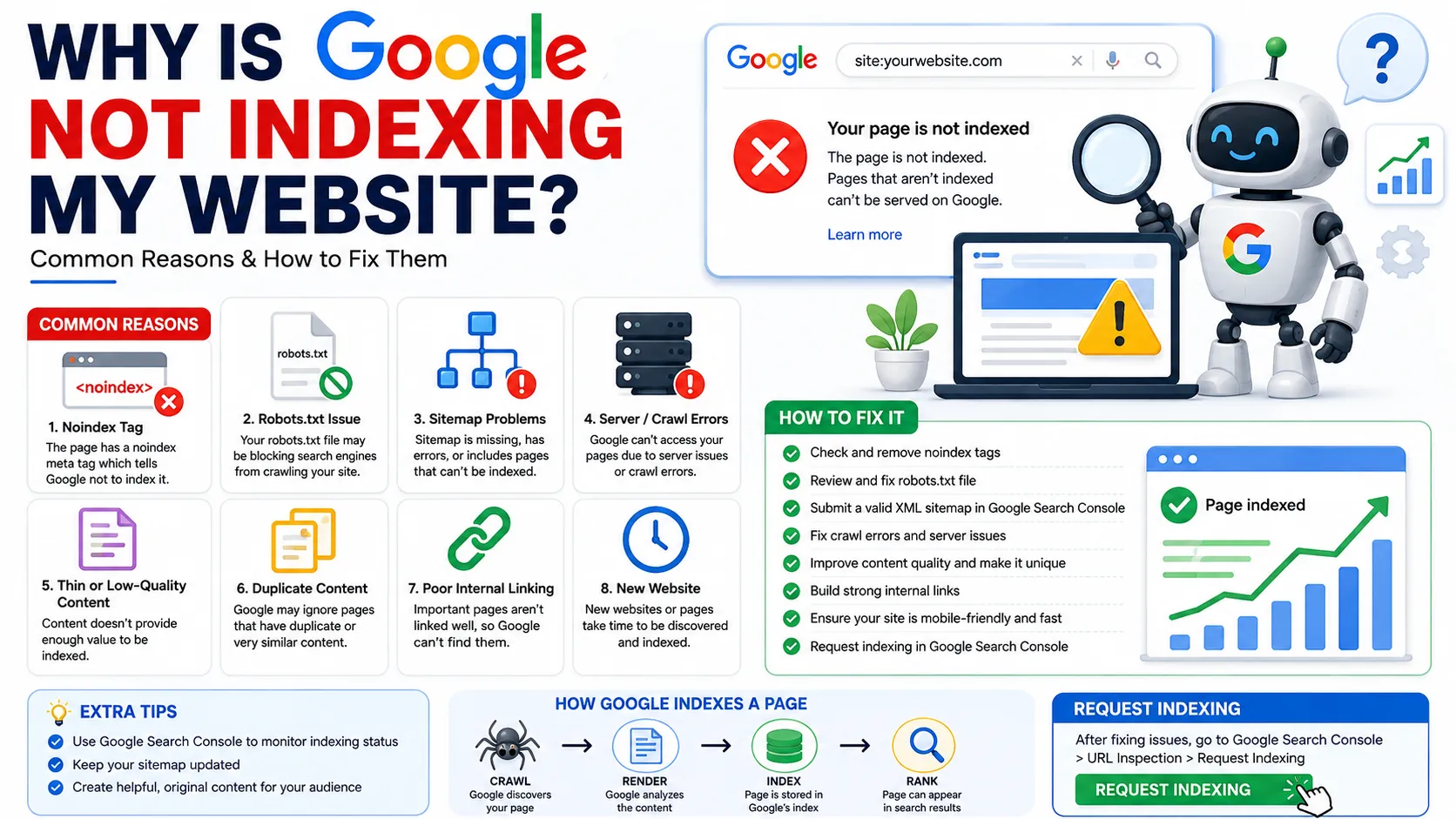
Google may not be indexing your website because of crawlability problems, a noindex directive, robots.txt restrictions, sitemap issues, duplicate content, technical errors, weak internal linking, or simply because Google hasn’t discovered or processed the page yet.
Why Is Google Not Indexing My Website?
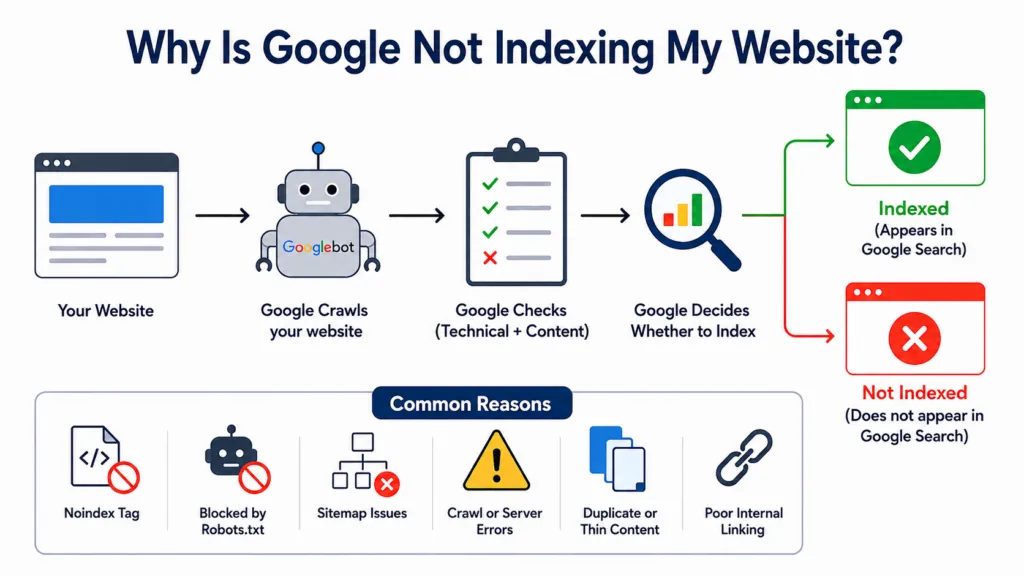
Google isn’t indexing your site because something in the crawling, processing, or quality-evaluation pipeline is blocking or delaying it – this could be a technical restriction, a content issue, or simply a matter of time.
To understand why, it helps to separate three terms people often use interchangeably:
- Crawling – Googlebot visits your page and reads its content and code.
- Indexing – Google decides to store that page in its database as a candidate to show in search results.
- Ranking – Once indexed, Google decides where (if anywhere) that page appears for relevant search queries.
A page can be crawled but not indexed. It can be indexed but ranks poorly. These are sequential gates, not a single switch. If your page isn’t showing up at all, the problem is almost always happening at the crawling or indexing stage – not the ranking stage – which is actually good news, because these issues are usually fixable.
How to Check If Google Has Indexed Your Website
Direct answer: The fastest way to check is a site:yourdomain.com search in Google, but Google Search Console’s URL Inspection tool gives you the actual, reliable indexing status.
Here’s a simple step-by-step process:
- Do a site: search. Type site:yourdomain.com into Google. If your page shows up, it’s indexed. If nothing appears, treat this as a signal, not final proof – this method isn’t always perfectly accurate.
- Open Google Search Console. This is the tool Google itself provides to website owners, and it’s far more dependable than a manual search.
- Use the URL Inspection tool. Paste in the exact URL you’re checking. It will tell you whether the page is indexed, and if not, why.
- Check the Page Indexing report. Under “Indexing,” this report shows every URL Google knows about, split into indexed and non-indexed groups, along with the reason for exclusion.
A site: search is a good gut check. Google Search Console is where you actually diagnose the problem.
10 Common Reasons Google Is Not Indexing Your Website
1. Your Website or Page Has a Noindex Tag
A noindex tag is a direct instruction telling Google “don’t put this page in your index.” It’s often added intentionally (for thank-you pages, admin pages, etc.) but sometimes ends up on important pages by accident.
How to check: View the page source and search for noindex, or use the URL Inspection tool in Search Console, which reports this directly.
How to fix: Remove the noindex tag if it shouldn’t be there. On WordPress, this is often controlled through your SEO plugin’s settings for that specific page or post.
2. Robots.txt Is Blocking Google
Your robots.txt file tells search engine crawlers which parts of your site they’re allowed to access. If it’s misconfigured, it can block Googlebot from even reaching your pages.
How to check: Visit yourdomain.com/robots.txt and look for Disallow rules that might be blocking important sections of your site.
How to fix: Update the robots.txt file to allow crawling of pages you want indexed. Be careful – a single misplaced rule can accidentally block your entire site.
3. Your XML Sitemap Has Problems
Your XML sitemap is a file that lists the URLs you want Google to know about. If it’s missing, outdated, or contains errors, Google may not discover certain pages efficiently.
How to check: Look at the Sitemaps report in Google Search Console for errors or warnings, and confirm the sitemap actually includes the page in question.
How to fix: Regenerate the sitemap (most SEO plugins do this automatically), submit it in Search Console, and make sure it doesn’t contain broken or outdated URLs.
4. Google Has Not Discovered the Page Yet
Sometimes there’s no technical problem at all – Google simply hasn’t found the page. This is common for new websites or newly published pages, especially if they aren’t linked from anywhere else on your site.
How to check: Use URL Inspection. If it says “URL is not on Google” and there’s no indication of a blocking issue, discovery is likely the cause.
How to fix: Add internal links to the page, make sure it’s included in your sitemap, and consider requesting indexing manually (covered below).
5. Your Website Has Crawl or Server Errors
If Googlebot tries to access your page and hits a 404 error, a 5xx server error, or a timeout, it can’t index content that isn’t loading properly.
How to check: The Page Indexing report in Search Console flags crawl errors, including 404s and server errors, by URL.
How to fix: Fix broken links, resolve server downtime or performance issues, and make sure your hosting can handle Googlebot’s requests reliably.
6. The Page Has Duplicate or Very Thin Content
Google generally avoids indexing pages that are near-duplicates of other content, either on your own site or elsewhere, or pages with very little substantive content.
How to check: Search Console often labels these as “Duplicate, Google chose different canonical” or “Crawled – currently not indexed.”
How to fix: Expand thin pages with genuinely useful content, consolidate near-duplicate pages, or set clear canonical tags pointing to the preferred version.
7. Canonical Tags Are Pointing Elsewhere
A canonical tag tells Google which version of a page is the “main” one when similar content exists in multiple places. If it’s set incorrectly, Google may index a different URL than the one you intended.
How to check: View the page source for the rel=”canonical” tag, or check the “User-declared canonical” versus “Google-selected canonical” fields in URL Inspection.
How to fix: Correct the canonical tag so it points to the actual URL you want indexed, especially if it’s currently pointing to a different page by mistake.
8. Your Website Has Weak Internal Linking
Pages that aren’t linked from anywhere else on your site are harder for Google to find and are often treated as lower priority.
How to check: Ask yourself: can a visitor reach this page by clicking through your site’s normal navigation, or is it isolated?
How to fix: Add contextual internal links from related, already-indexed pages. This helps both discovery and how Google interprets the page’s importance.
9. Your Website Is New or Has Limited Authority
Newer or lower-authority websites are sometimes crawled less frequently simply because Google hasn’t yet built up trust or a crawling pattern for them.
How to check: There’s no single Search Console flag for this, but if your site is new and pages are indexing slowly and inconsistently, authority is a likely factor.
How to fix: Build genuine backlinks, maintain consistent publishing, and be patient – this tends to improve naturally as the site matures.
10. Google Has Not Processed the Page Yet
Even after a page is crawled, Google doesn’t index it instantly. There can be a processing delay, especially on large or slower-moving sites.
How to check: Search Console may show “Crawled – currently not indexed,” which indicates Google has seen the page but hasn’t decided to index it yet.
How to fix: There’s no direct fix for this beyond improving overall page quality and requesting indexing again after making improvements.
How to Fix Google Indexing Issues
Use this as a practical troubleshooting sequence:
- Open Google Search Console.
- Inspect the affected URL using the URL Inspection tool.
- Check the indexing status it reports.
- Check for noindex directives in the page source or your SEO plugin.
- Check robots.txt for accidental blocks.
- Check your XML sitemap for errors or missing URLs.
- Fix technical or server errors flagged in the Page Indexing report.
- Improve content quality on thin or duplicate pages.
- Add relevant internal links pointing to the page.
- Request indexing in Google Search Console.
- Monitor the page afterward to confirm whether it gets indexed.
If you’re dealing with a site-wide issue rather than a single page, work through steps 4 through 9 broadly before requesting indexing again – fixing the underlying cause matters more than repeatedly clicking “request indexing” on a broken page.
How to Request Indexing in Google Search Console
You request indexing in Google Search Console by inspecting the specific URL and clicking “Request Indexing,” which asks Google to recrawl and re-evaluate that page.
- Open Google Search Console.
- Select the correct property (make sure it matches your domain and protocol).
- Open the URL Inspection tool.
- Enter the full URL you want indexed.
- Check the current indexing status shown.
- If appropriate, click Request Indexing.
- Wait for Google to recrawl and process the page.
- Monitor the URL’s status over the following days or weeks.
It’s worth being clear here: Google’s own systems ultimately decide whether and when to index a URL. A request nudges Google’s attention toward your page – it doesn’t force an outcome.
Why Request Indexing Doesn’t Always Work
Requesting indexing is a useful tool, but it isn’t a guarantee, and it’s important to set realistic expectations:
- Google may still choose not to index low-quality or thin pages, even after a request.
- Duplicate URLs may simply get consolidated into a different canonical version.
- Underlying technical problems (noindex, robots.txt, server errors) will block indexing regardless of how many times you request it.
- Content may genuinely need improvement before Google considers it worth indexing.
- Sometimes Google just needs more time to process the request, even with no problems present.
If you keep requesting indexing on the same URL without addressing the root cause, you’re unlikely to see a different result. Fix the issue first, then request indexing.
Google Indexing Issues on WordPress Websites
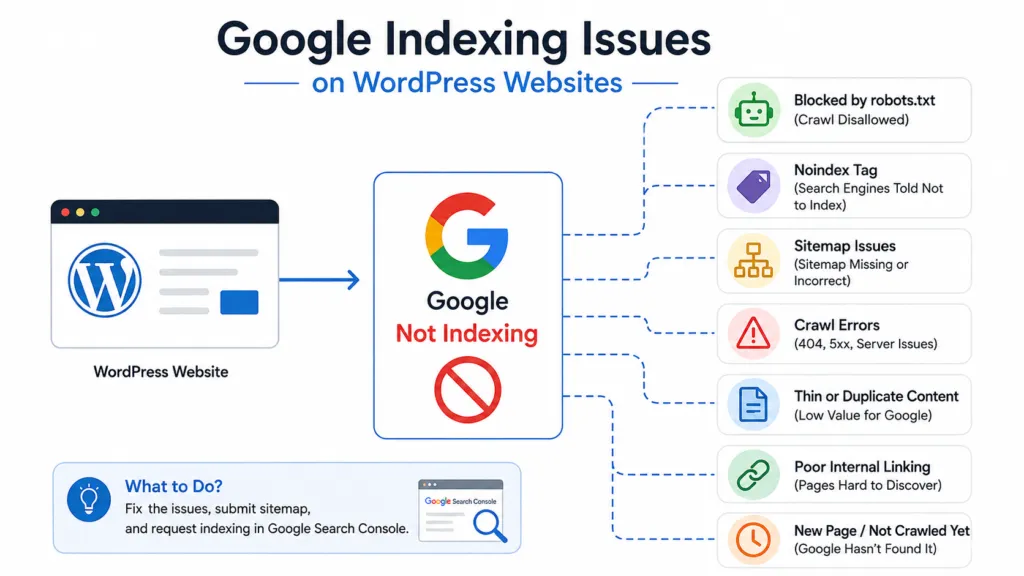
WordPress sites run into indexing problems for reasons that are specific to the platform and its plugin ecosystem. A few of the most common:
- The “Discourage search engines” setting. Under Settings → Reading, WordPress has a built-in checkbox that can block your entire site from being indexed. It’s easy to leave checked after launching from staging.
- SEO plugin noindex settings. Plugins like Yoast, Rank Math, or All in One SEO let you set noindex on individual posts, pages, or entire post types – sometimes unintentionally.
- Robots.txt configuration. Some SEO plugins and security plugins modify robots.txt automatically, occasionally introducing unwanted restrictions.
- XML sitemap configuration. Plugin conflicts or misconfigurations can cause your sitemap to be incomplete, duplicated, or pointing to the wrong URLs.
- Canonical settings. Some themes or plugins set canonical tags incorrectly, especially on custom post types.
- Duplicate archives and taxonomies. Category, tag, and author archive pages can create large amounts of thin or duplicate content if not managed carefully.
- Plugin conflicts. Multiple SEO or caching plugins running together can produce contradictory indexing signals.
- Poor internal linking. Some WordPress themes bury content in ways that make it hard for both users and Googlebot to find.
- Slow or unstable hosting. Cheap or overloaded hosting can cause timeouts that prevent Googlebot from crawling reliably.
- Broken links and redirect chains. These waste crawl budget and can prevent Googlebot from reaching the pages that matter.
- Staging sites getting indexed, or production sites getting blocked. This happens more often than you’d think, especially after a site migration.
How Long Does Google Take to Index a Website?
Direct answer: There’s no fixed or guaranteed timeframe — indexing can take anywhere from a few hours to several weeks, depending on multiple factors.
Indexing speed depends on:
- Overall website quality and content depth
- How easily can Googlebot crawl your site
- The strength of your internal linking
- Your website’s existing popularity and authority
- Server performance and reliability
- How quickly your sitemap gets discovered and processed
- Google’s own internal processing systems, which vary in speed
Be wary of anyone who promises indexing “within 24 hours” as a guarantee. It sometimes happens quickly, especially for established, high-authority sites, but there’s no way to promise a specific timeline for every website.
What to Do If Your Website Is Still Not Indexed
If you’ve worked through the causes above and pages still aren’t indexed, go through this checklist:
- Check Google Search Console for indexing reports
- Inspect the specific URL with URL Inspection
- Remove any unintended noindex directives
- Check robots.txt for accidental blocks
- Submit or fix your XML sitemap
- Fix crawl and server errors
- Improve thin or low-value content
- Resolve duplicate content and canonical issues
- Add relevant internal links to the page
- Improve overall website structure and navigation
- Request indexing again after fixes are made
- Monitor indexing status over the following weeks
If you’ve genuinely worked through this list and pages are still not indexing, that’s usually a sign of a deeper technical issue that needs a closer look.
When Should You Hire an SEO Expert?
Not every indexing problem needs professional help — many are fixable with the steps above. But it makes sense to bring in outside expertise when:
- Hundreds of URLs are not indexed, not just one or two pages
- Indexing suddenly drops after previously working fine
- You’ve gone through the basic troubleshooting and still can’t identify the cause
- WordPress plugins seem to be conflicting with each other
- A recent website migration coincided with indexing problems
- Overall traffic and visibility have dropped noticeably
- Search Console keeps reporting the same indexing errors repeatedly
- Your business pages aren’t appearing in search despite being technically accessible
This is where a team like WP Badgers can help. Through dedicated WordPress SEO Services, WP Badgers works on technical SEO audits, Google Search Console analysis, indexing troubleshooting, on-page SEO, website structure, and the technical fixes that often sit behind persistent indexing problems. That doesn’t mean indexing or rankings can be guaranteed – no legitimate SEO provider can promise that – but a structured WordPress SEO Audit can identify exactly what’s blocking your site and outline a clear plan to fix it.
Frequently Asked Questions
Why is Google not indexing my website?
Google may not be indexing your website due to a noindex tag, robots.txt restrictions, sitemap issues, duplicate or thin content, crawl or server errors, weak internal linking, or simply because Google hasn’t discovered or processed the page yet. Most of these causes are diagnosable through Google Search Console and fixable without advanced technical skills.
How do I check if my website is indexed by Google?
Use a site:yourdomain.com search in Google for a quick check, or open Google Search Console and use the URL Inspection tool for a definitive answer. Search Console also has a Page Indexing report that shows every indexed and non-indexed URL along with the reason.
How do I request indexing on Google?
Open Google Search Console, go to URL Inspection, enter the full URL, and click “Request Indexing” if the page is eligible. This asks Google to recrawl and reconsider the page, though indexing itself is never guaranteed.
How long does Google take to index a new website?
There’s no fixed timeframe. It can take anywhere from a few hours to several weeks depending on your site’s crawlability, authority, sitemap discovery, and server performance. Newer or lower-authority sites often take longer.
Why is Google indexing some pages but not others?
This usually comes down to differences in content quality, internal linking, crawl priority, or technical issues affecting specific pages. Pages with thin content, duplicate content, or weak internal links are indexed less consistently than well-linked, higher-value pages.
Does a sitemap guarantee Google will index my pages?
No. A sitemap helps Google discover your pages more efficiently, but it doesn’t guarantee indexing. Google still evaluates each page’s quality, crawlability, and technical status before deciding whether to index it.
Can a noindex tag prevent Google from indexing my website?
Yes. A noindex tag is a direct instruction telling Google not to index that specific page, and Google generally respects it. If a page has an unintended noindex tag, it will not appear in search results until the tag is removed.
What should I do if my WordPress website is not indexed by Google?
Check the “Discourage search engines” setting under Settings → Reading, review your SEO plugin’s noindex settings, verify robots.txt and your XML sitemap, and inspect the URL in Google Search Console. If the issue persists after these checks, a technical SEO audit can help pinpoint the cause.
Conclusion
Google not indexing your website usually isn’t some big mystery once you know where to look. In most cases, it comes down to a few common issues: a noindex tag, a robots.txt block, sitemap problems, crawl or server errors, thin or duplicate content, weak internal linking, or simply the fact that Google hasn’t gotten around to crawling the page yet.
The good news is that you can usually figure this out by working through Google Search Console, checking the 10 common causes we covered above, and then requesting indexing after you’ve fixed the underlying issue. In most cases, that’s enough to get things moving again.
But if your pages still aren’t getting indexed after all that, you may be wondering, “Why Is Google Not Indexing My Website?” There may be something deeper going on with your site’s technical setup. That’s where a structured WordPress SEO audit can really help. Instead of just checking boxes, it helps you find the actual issues that could be keeping Google from crawling, understanding, or indexing your pages properly.
Still Not Showing Up in Google?
Still wondering why Google is not indexing your website? WP Badgers can help identify whether the problem is technical, content-related, or related to your site’s structure. If your WordPress website has persistent indexing issues, consider getting a professional WordPress SEO Audit through our WordPress SEO Services to pinpoint the underlying problem before it affects your search visibility further.